What is the Difference Between a Broken Link and a Dead Link?
When auditing a website's technical health, you will inevitably encounter hyperlinks that no longer lead to their intended destinations. In the world of search engine optimization (SEO) and web development, these malfunctioning pathways are commonly referred to as "link rot." As you dig into SEO audit reports, you will frequently see two terms used to describe this issue: broken links and dead links. This leads many webmasters, content creators, and SEO beginners to ask: What is the difference between a broken link and a dead link? What does a broken link mean in technical terms? And what does a dead link mean when you are auditing an older website?
While many marketers use these terms interchangeably in casual conversation, there is a distinct technical difference between the two. The short answer is: A broken link points to a specific web page that is missing, deleted, or has a typo in its URL (usually resulting in a 404 error), but the host website is still active. A dead link, on the other hand, points to an entire website or server that is completely offline, permanently shut down, or has an expired domain.
In this comprehensive foundational guide, we will explore the exact technical definitions of both terms, examine the root causes behind them, compare their impacts on your SEO, and provide clarity on how to diagnose these critical website errors.
[Insert Banner Image Here]
Table of Contents
The Short Answer: Lead with the Core Differences
To immediately satisfy your search intent, here is the fundamental difference between these two hyperlinking errors:
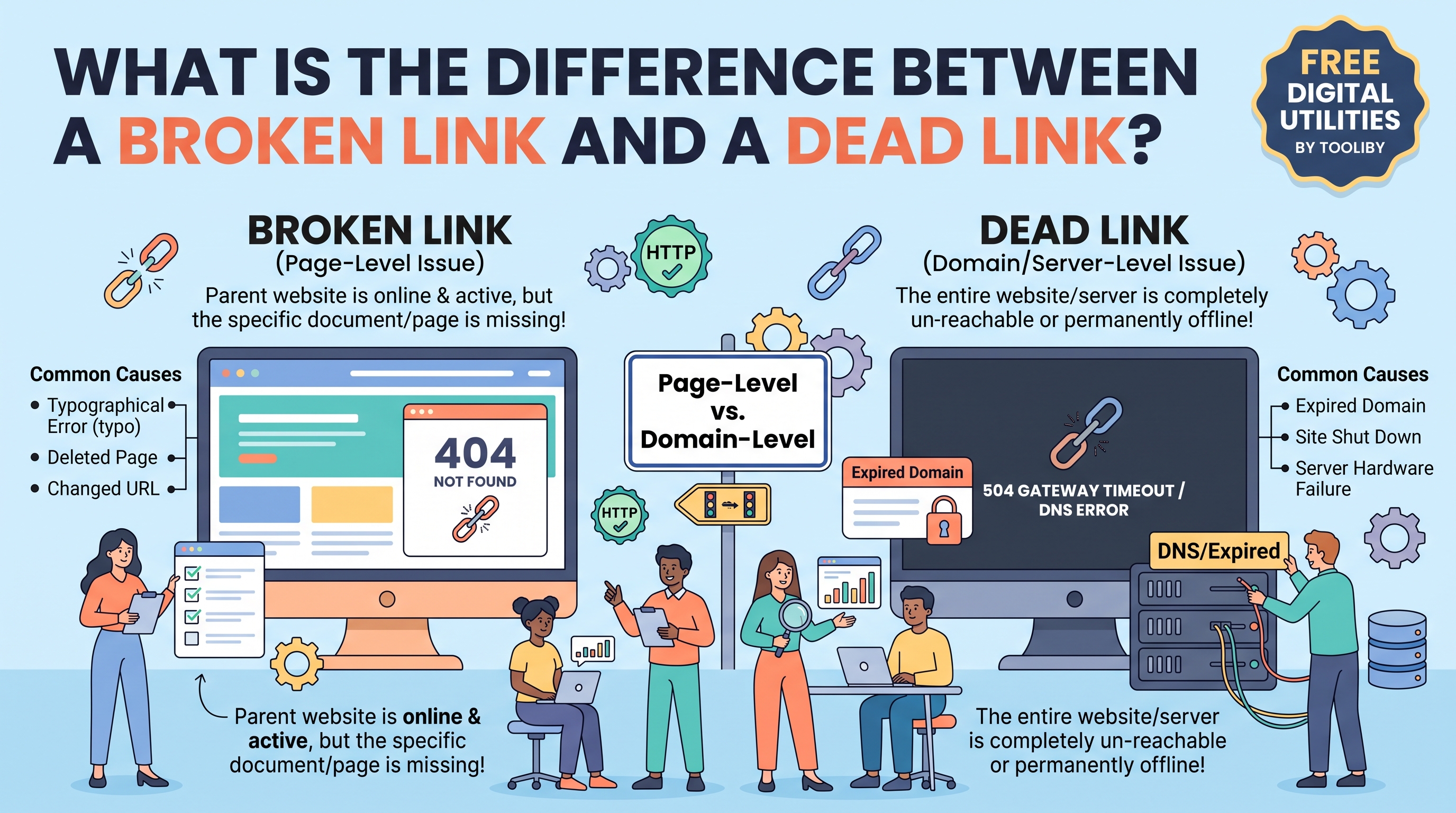
A Broken Link is a Page-Level Issue: The website hosting the content is perfectly fine, online, and accessible. However, the specific file or page you are trying to reach on that website cannot be found. The server successfully responds but says, "I am here, but the document you want is gone."
A Dead Link is a Domain-Level or Server-Level Issue: The entire website or hosting server you are trying to connect to is unreachable. The server does not respond at all, or the domain name simply does not exist anymore.
Understanding this distinction is critical because diagnosing and fixing a broken link requires a completely different approach than dealing with a dead link.
What Does a Broken Link Mean? (Definition & Common Causes)
If you are asking, what does a broken link mean?, you are dealing with the most common type of link error on the internet.
A broken link is a hyperlink that points to a specific URL path that is currently invalid, even though the parent domain is fully operational. When a user or a search engine crawler clicks on a broken link, the host server processes the request but returns an HTTP status code indicating that the resource cannot be located. The most famous example of this is the 404 Not Found error.
Common Causes of Broken Links
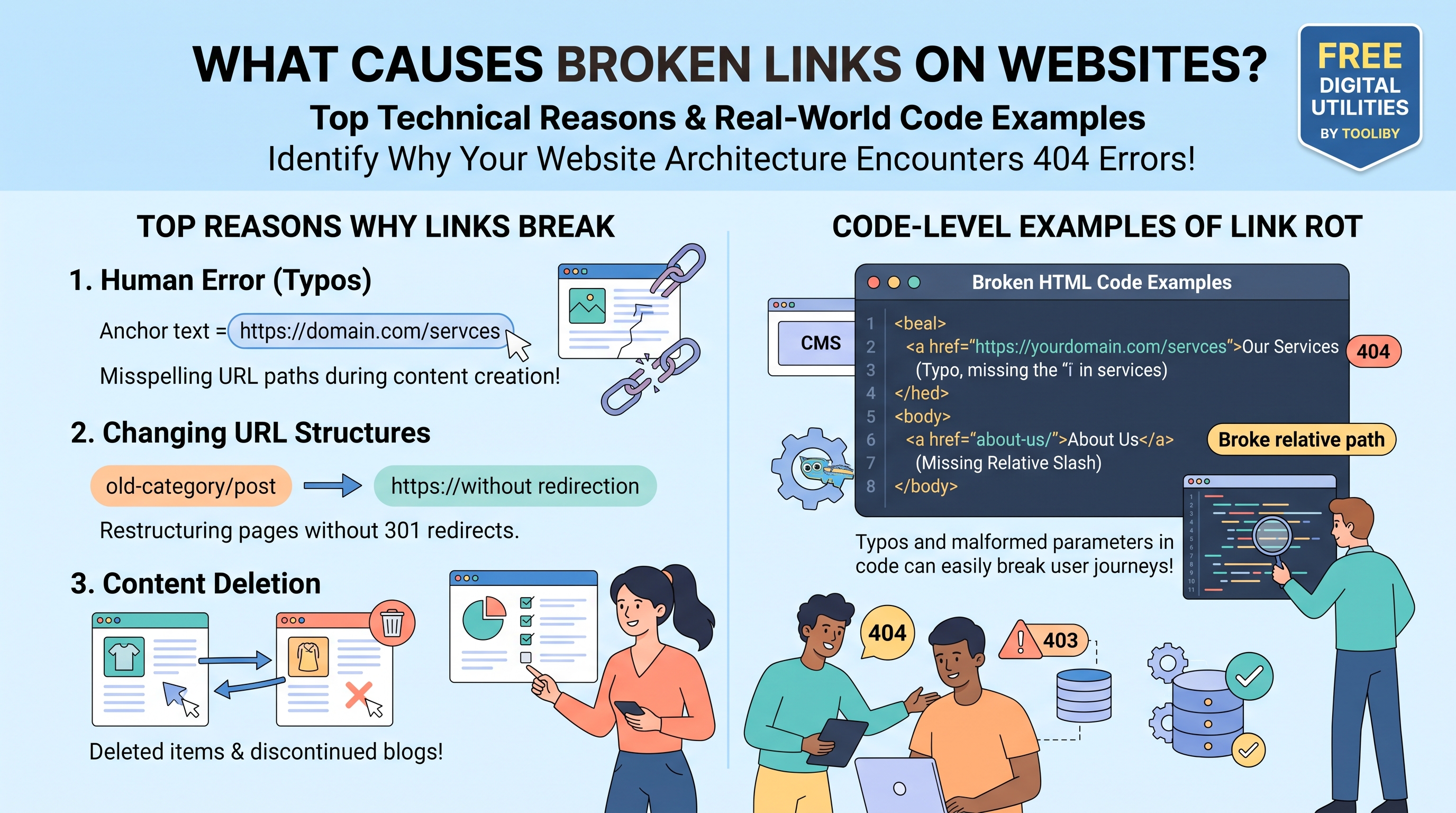
Broken links are almost always caused by human error, content management system (CMS) migrations, or poor website maintenance. Here are the primary reasons why links break:
Typographical Errors in the URL: The most common cause is a simple typo. If a webmaster accidentally adds an extra letter or symbol when typing out the hyperlink (
example.com/blogginstead ofexample.com/blog), the link becomes broken.Deleted Pages or Products: E-commerce sites frequently delete product pages when items go out of stock permanently. If internal links or external backlinks are still pointing to that deleted product URL, those links are now broken.
Changed URL Structures (Permalinks): During a website redesign, a site owner might change the URL structure (e.g., from
example.com/2026/10/posttoexample.com/post). If proper 301 redirects are not set up, every old link pointing to the dated URL structure will break.Content Moved Without Redirection: When an article is moved to a new category folder, the URL path changes. Without a redirect, the old link path breaks immediately.
Restricted Content Access: Sometimes a page still exists, but the webmaster changes the privacy settings (e.g., moving a public blog post to a private membership tier), resulting in a 401 Unauthorized or 403 Forbidden error for regular users.
In all of these scenarios, the website itself (example.com) is still alive and kicking. It is only the specific pathway to a single piece of content that is broken.
[Insert Infographic Here]
What Does a Dead Link Mean? (Definition & Common Causes)
Conversely, webmasters often ask: What does a dead link mean?
A dead link is a hyperlink that points to an endpoint that is entirely unresponsive. In this scenario, it is not just a single article or image that is missing; the entire destination domain or hosting server has vanished from the internet. When a browser attempts to follow a dead link, it cannot even make a connection to a server to request a file.
Instead of a 404 error, dead links typically result in browser-level connection timeouts, DNS resolution errors, or severe 500-level server errors (like 502 Bad Gateway or 504 Gateway Timeout if the server is permanently offline).
Common Causes of Dead Links
Dead links are usually the result of business closures, abandoned digital projects, or severe technical infrastructure failures. Here are the main reasons why links die:
Expired Domains: The most frequent cause of a dead link is an expired domain name. If a blogger stops paying for their domain renewal, the domain registrar takes the website offline. Any link pointing anywhere on that domain becomes a dead link.
Website Shut Downs: Businesses close, startups fail, and hobby blogs are abandoned. When a site owner permanently deletes their hosting account and takes their database offline, all inbound links to their domain become dead.
Server Hardware Failures: If a website is hosted on a physical server that crashes and the webmaster has no backups, the site becomes permanently unreachable.
DNS Misconfigurations: Severe errors in a domain's Domain Name System (DNS) records can prevent browsers from finding the server's IP address, effectively killing all links pointing to the site.
Geographic IP Blocking or Firewalls: In some cases, a link appears dead to a user because the destination server has implemented strict geographical blocking or firewall rules that completely reject connection attempts from certain regions.
A dead link represents the ultimate end of a digital destination. There is no website to salvage, no server to respond, and no content to recover.
Side-by-Side Comparison: Broken Links vs. Dead Links
To make the distinction crystal clear for your next technical SEO audit, here is a comparative breakdown of broken versus dead links:
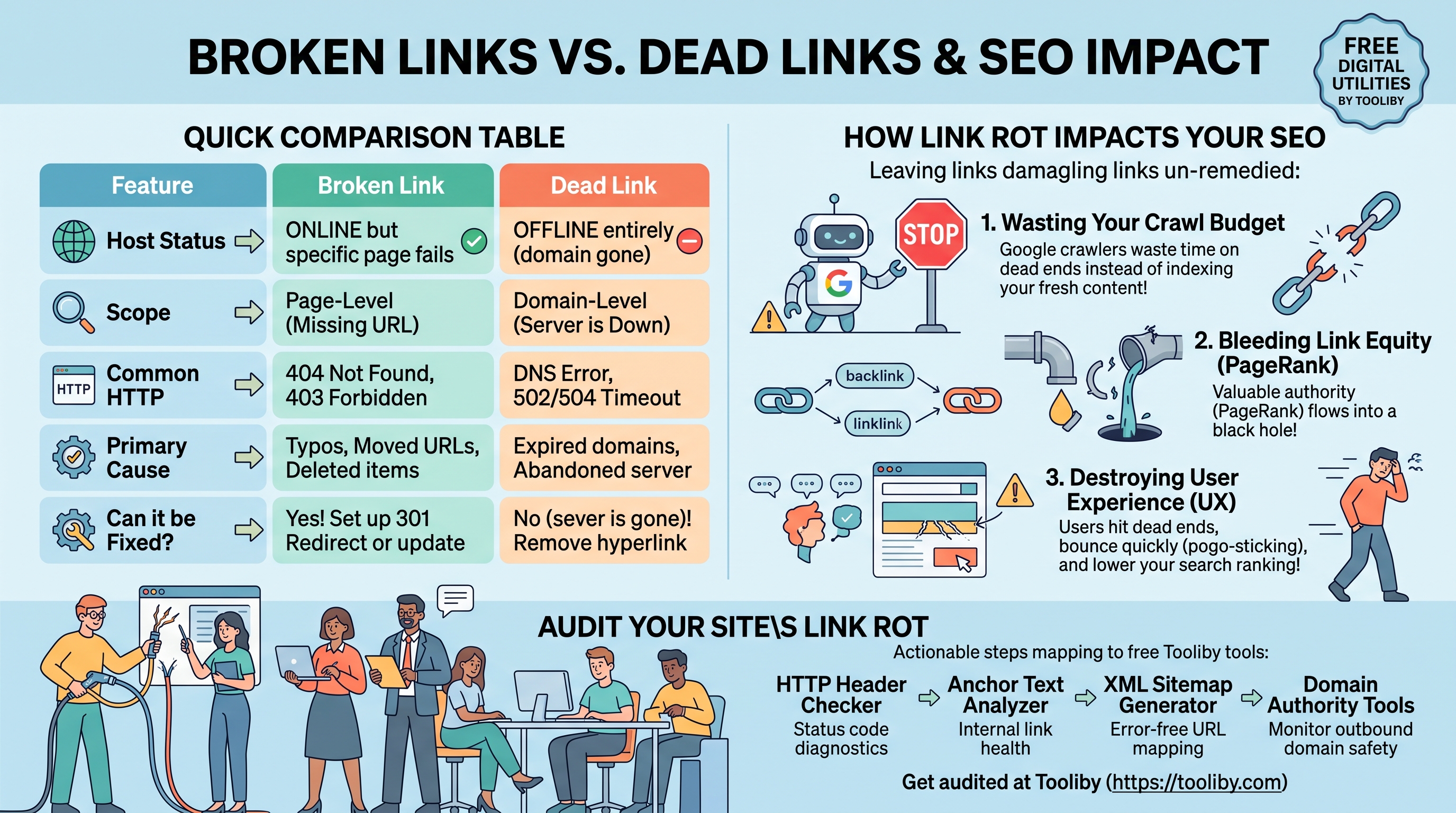
| Feature | Broken Link | Dead Link |
| Operational Status of Host | The host website/server is online and active. | The host website/server is completely offline or deleted. |
| Scope of the Issue | Page-level issue (only specific URLs fail). | Domain-level or server-level issue (the entire site fails). |
| Typical HTTP Status Code | 404 (Not Found), 400 (Bad Request), 403 (Forbidden). | DNS Error, Connection Timeout, 502/503/504 (Server Errors). |
| Primary Cause | Typos, deleted pages, changed URLs without 301 redirects. | Expired domains, abandoned hosting, server destruction. |
| Who is Responsible? | Usually the webmaster managing the internal URLs. | The owner of the destination domain failing to renew/maintain it. |
| Can it be Redirected? | Yes, the host webmaster can set up a 301 redirect. | No, the destination server is gone. The linking site must delete the link. |
How Link Rot Impacts Your SEO and User Experience
Whether a link is broken due to a typo or dead due to an expired domain, the phenomenon of links failing over time is known as "link rot." Search engines like Google despise link rot because it degrades the fundamental architecture of the World Wide Web.
Here is why you must aggressively monitor your website for both broken and dead links:
1. Wasting Your Crawl Budget
Google assigns a "crawl budget" to your website—a limit on the number of pages it will crawl in a given timeframe. When Googlebot hits a broken link (404) or a dead link timeout, it wastes valuable crawl resources on a dead end. If your site has hundreds of broken internal links, Googlebot will spend its time crawling errors instead of indexing your fresh, high-quality content.
2. The Bleeding of Link Equity (PageRank)
Internal links and external backlinks pass "link equity" (or PageRank) from one page to another. This equity is the currency of SEO. When you link to a dead website or a broken internal page, that link equity flows into a black hole. It stops dead in its tracks. By fixing broken links and replacing dead external links, you retain your site's link equity and distribute it efficiently.
3. Destruction of User Experience (UX)
From a user's perspective, nothing is more frustrating than clicking a link to read an exciting source or buy a product, only to be met with a blank "Server Not Found" screen or a generic 404 page. High instances of broken and dead links lead to immediate "pogo-sticking" (users instantly clicking the back button to return to Google), which signals to search engines that your website offers a poor user experience. Over time, poor UX signals lead to lower overall rankings.
Audit Your Site's Link Health with Free Tooliby Utilities
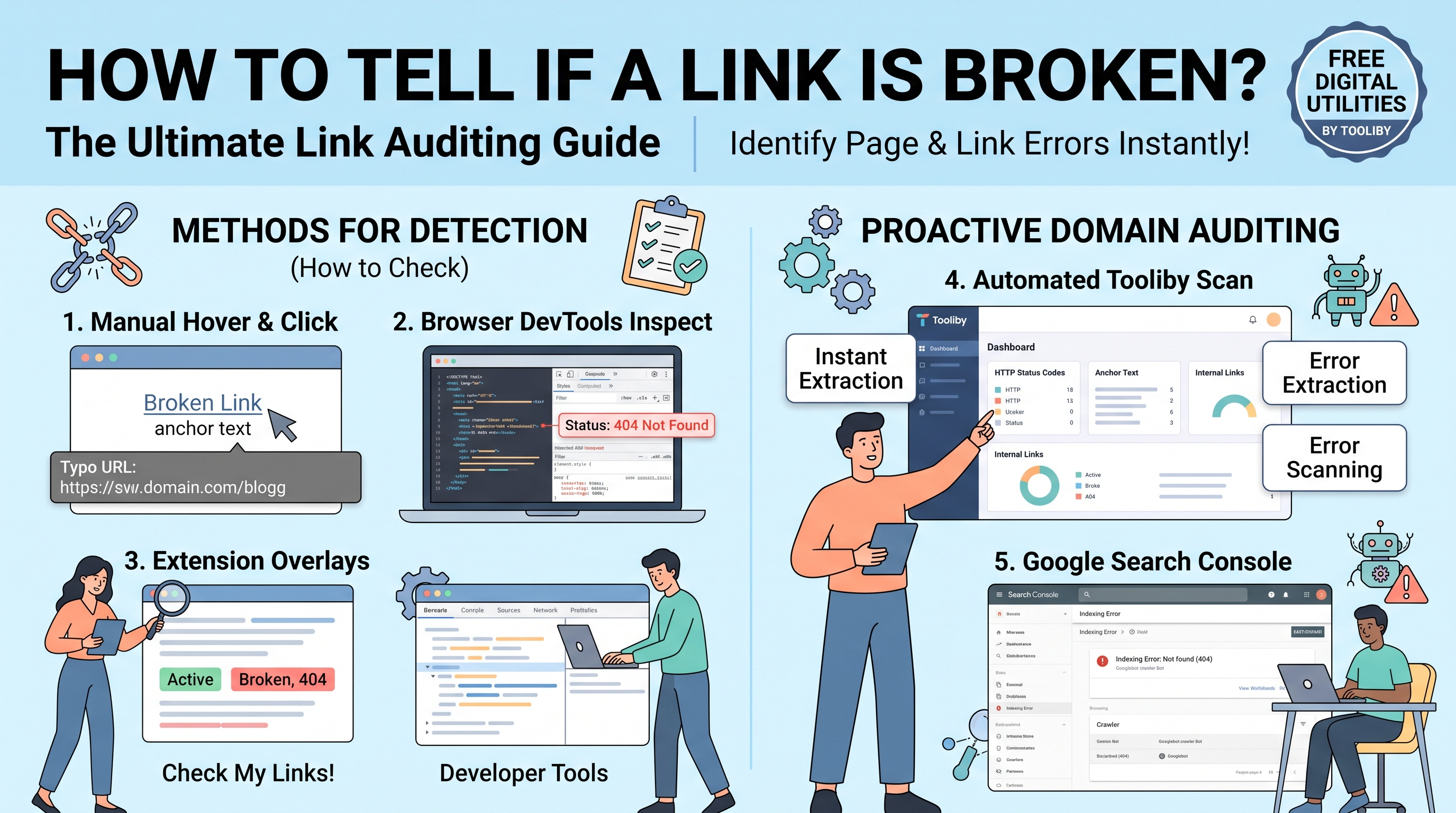
You cannot fix what you cannot find. Relying on manual clicks to find the difference between broken links and dead links on a 500-page website is impossible. You need automated, robust utilities to scan your domain's architecture.
You can instantly audit your website's link profile using
Identify HTTP Status Codes: Instantly check if a link is returning a 404 (broken) or a 500-level error (dead) using the
HTTP Header Checker Audit Internal Link Architecture: Ensure you are not bleeding link equity through broken pathways using the
Anchor Text Analyzer Verify Site Indexability: Generate a clean, error-free map of your working URLs for Google using the
XML Sitemap Generator Analyze Domain Health: Audit a domain's baseline strength before linking out to ensure you aren't linking to an expiring domain using the
Domain Authority Utilities
Frequently Asked Questions (FAQs)
1. What is the difference between a broken link and a dead link?
A broken link points to a specific missing page on an active website (usually a 404 error). A dead link points to a website that has been completely taken offline or whose domain has expired.
2. Are 404 errors bad for SEO?
Individual 404 errors will not directly penalize your entire domain, as they are a natural part of the web. However, if your website has an excessive number of internal broken links, it creates a terrible user experience and wastes your crawl budget, which indirectly harms your SEO rankings.
3. How do I fix a broken link on my own website?
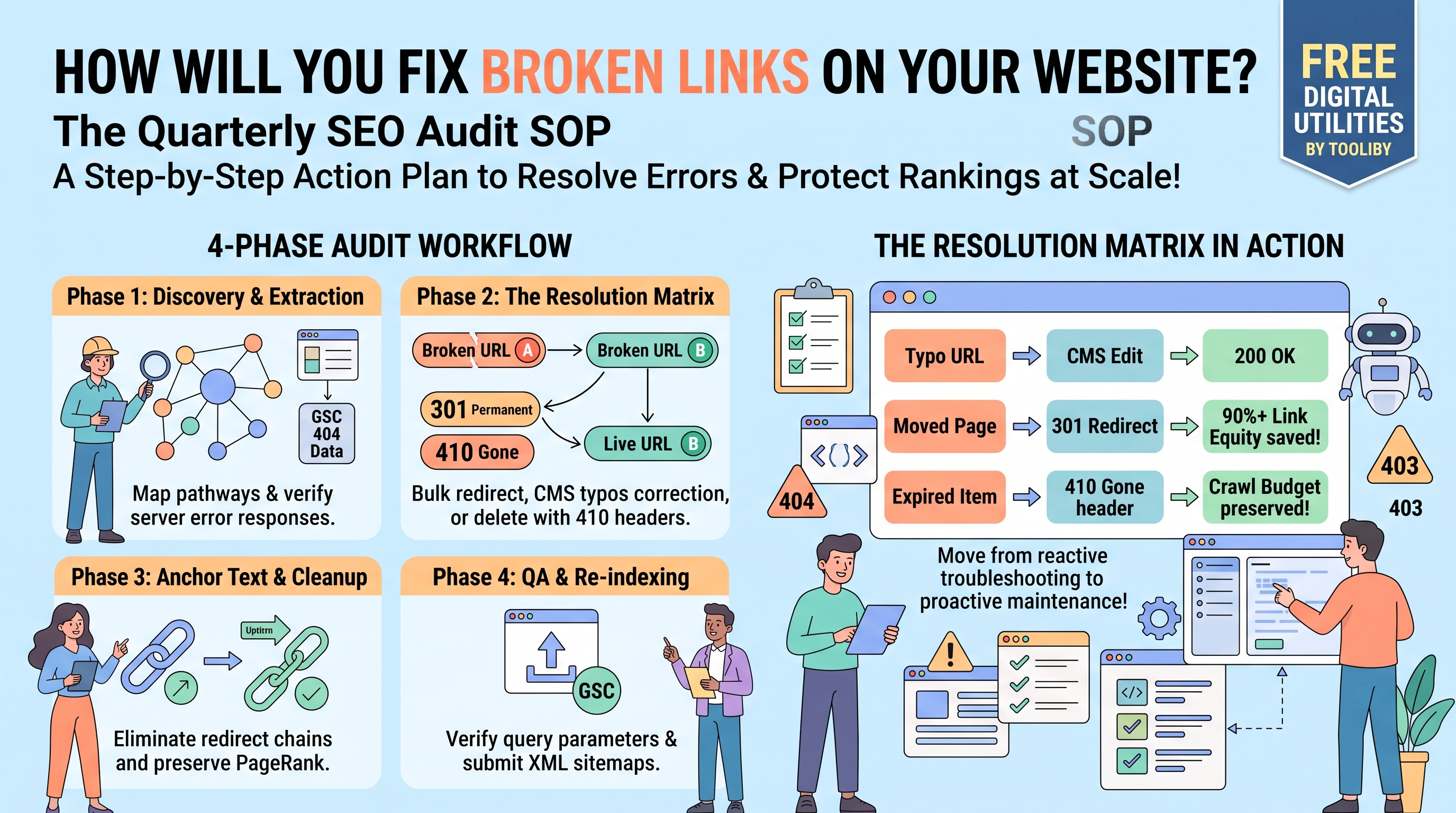
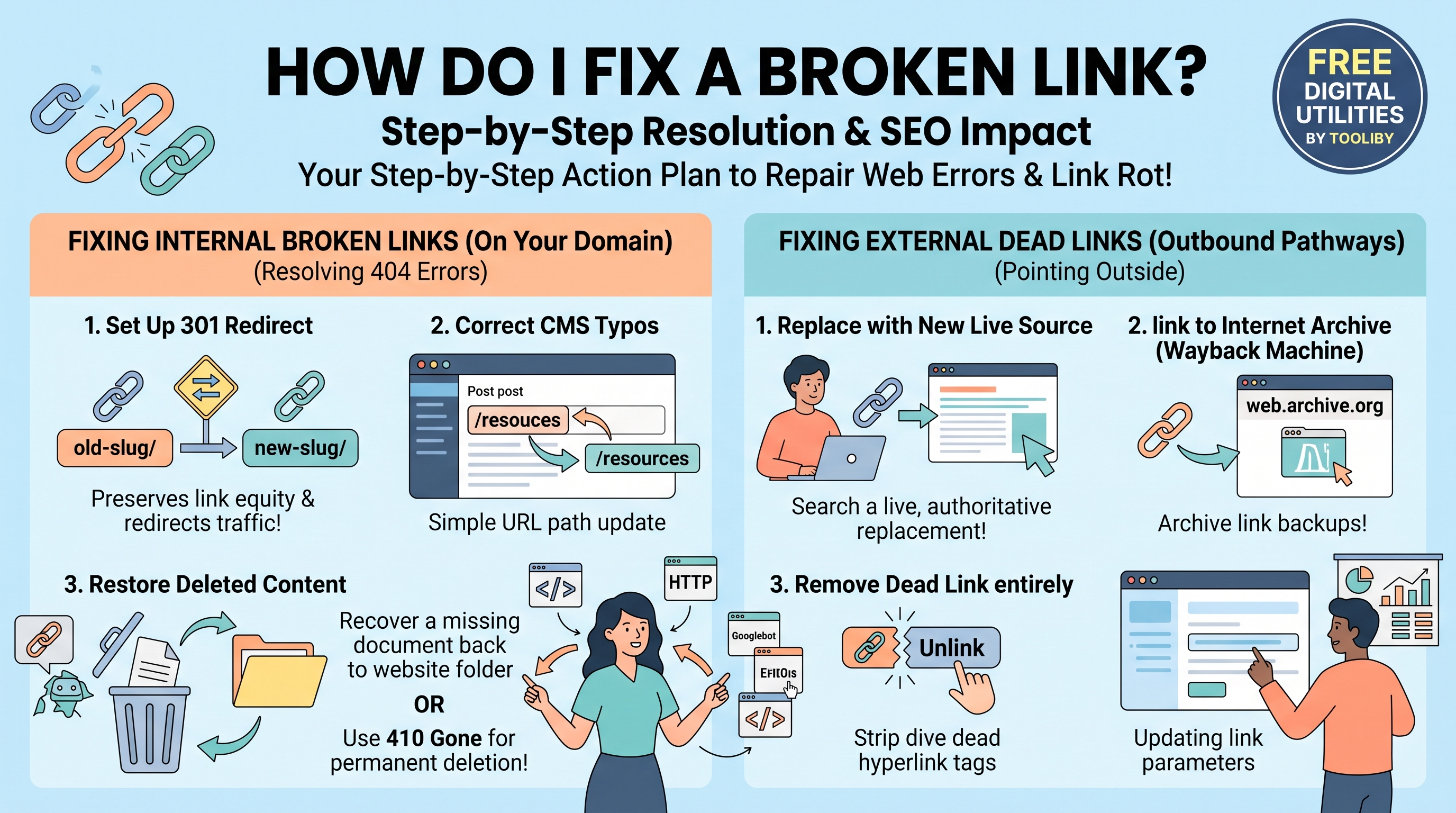
If the page was permanently moved or the URL slug was changed, you should implement a 301 permanent redirect pointing the broken URL to the new, relevant URL. If the page was deleted and has no relevant replacement, simply remove the internal links pointing to it.
4. What should I do if an external link I point to becomes a dead link?
Because you do not own the external dead website, you cannot set up a redirect. You must log into your content management system, locate the dead link in your article, and either remove the hyperlink entirely or replace it with a link to a new, active, and relevant source.
5. Does Google penalize sites with too many dead links?
Google's algorithms associate heavy link rot with abandoned, low-quality, or unmaintained websites. While not a direct manual penalty, having a high percentage of dead outbound links will absolutely lower your page's overall quality score, resulting in ranking drops.
Understanding the technical nuances between link errors is the first step to mastering technical SEO. Keep your domain architecture clean, update your content regularly, and rely on the 360+ Free Digital Tools at
What Is Tooliby Blog?
Tooliby Blog is a free publication covering developer tools, SEO, AI prompts and productivity — written by real practitioners who use these tools daily. No paywall, no account needed. Just practical content you can act on.
Can I share this article?
Yes — use the share buttons above to post on Twitter, LinkedIn, Facebook or WhatsApp. The more people read it, the better.
How do I write for Tooliby?
Click Write for Us and submit your article. We review within 48 hours and publish with full author credit and bio.