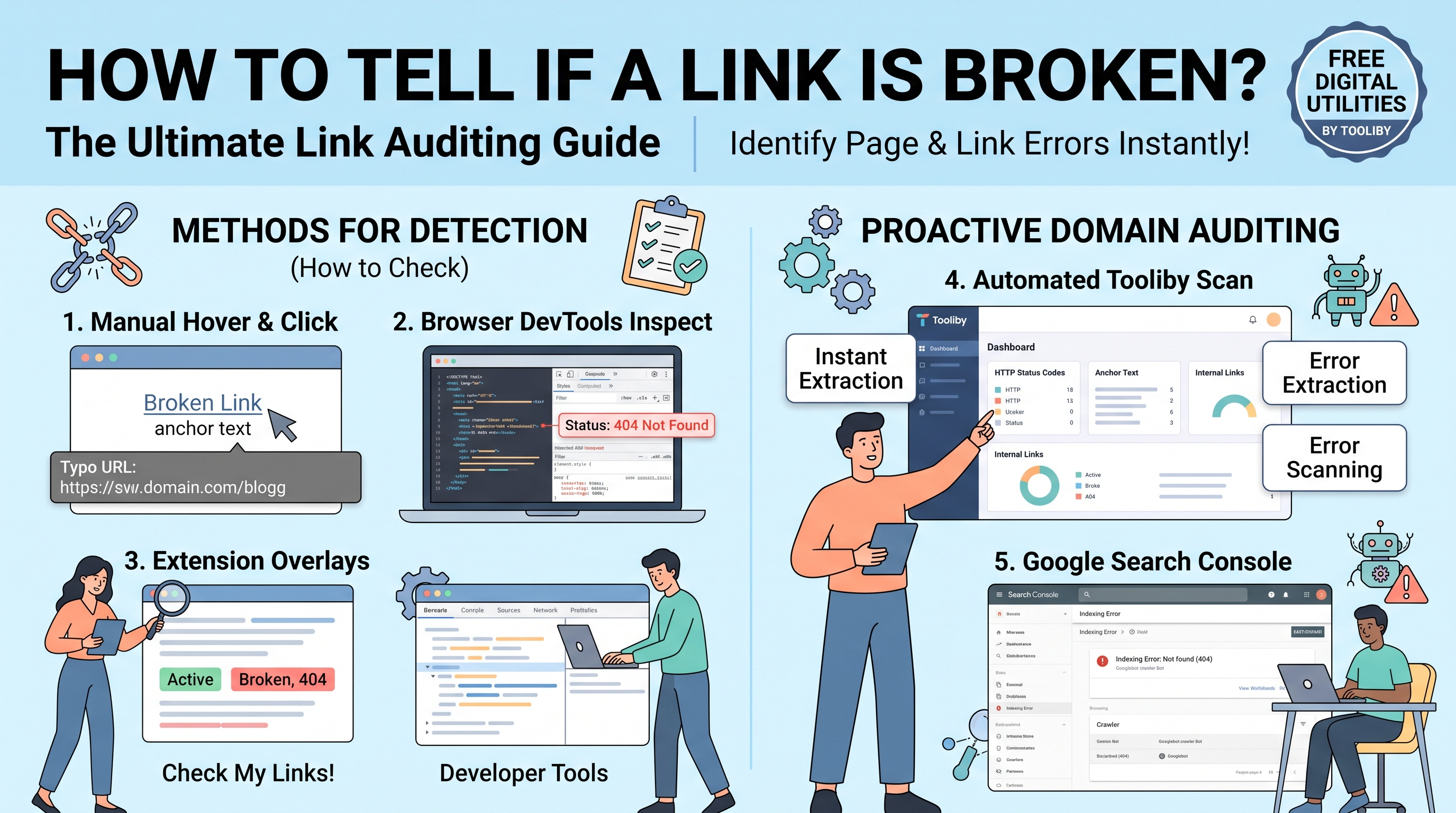
How to Tell if a Link is Broken? (The Ultimate Link Auditing Guide)
Have you ever clicked on an exciting hyperlink, expecting to read an insightful article or download a crucial resource, only to be hit with a frustrating "404 Not Found" error page? If so, you have experienced the annoyance of a broken link. For webmasters and digital marketers, broken links are more than just a minor inconvenience—they are a silent killer of user experience (UX) and search engine rankings. This leads to common, pressing questions: How to tell if a link is broken before clicking it? How to identify a broken link hiding deep within a 500-page website? And what is the most efficient way to audit an entire domain without spending hours manually checking every URL?
If you manage a website, knowing how to detect link rot is a non-negotiable skill. The short answer is: You can tell if a link is broken by clicking it to see if it returns a 404 HTTP status code, by inspecting the network request in your browser's developer tools, or by using automated SEO audit tools to scan the entire webpage instantly.
In this ultimate link auditing guide, we will break down the exact methods for detecting broken hyperlinks. From manual visual checks and browser developer tools to powerful Chrome extensions and free, one-click SEO utilities from Tooliby, we will show you step-by-step how to keep your site's architecture flawless.
Table of Contents
Method 1: How to Identify a Broken Link Manually (No Tools Required) Method 2: Using Browser Developer Tools (For Technical Audits) Method 4: Automated Auditing with Free Tooliby Utilities (The Best Way)
The Short Answer: How to Tell if a Link is Broken Quickly
If you simply want to know if a specific hyperlink works, the most direct way to tell if a link is broken is to click it.
When you click an active, healthy link, the destination server responds with a 200 OK HTTP status code, and the webpage loads normally. However, if the link is broken, the server will usually respond with a 404 Not Found or a 400 Bad Request error. This indicates that the host server is functioning, but the specific file, image, or web page that the URL points to has been moved, deleted, or mistyped.
While clicking works for a single link, it is highly inefficient for auditing an entire website. To identify broken links at scale, webmasters rely on browser extensions and automated crawler tools to read the HTTP status codes of hundreds of links simultaneously.
The Visual Cues: What Happens When a Link Breaks?
Before diving into advanced tools, it helps to understand the anatomy of a broken link. How do you identify a broken link based on what your browser displays?
1. The Standard 404 Error Page
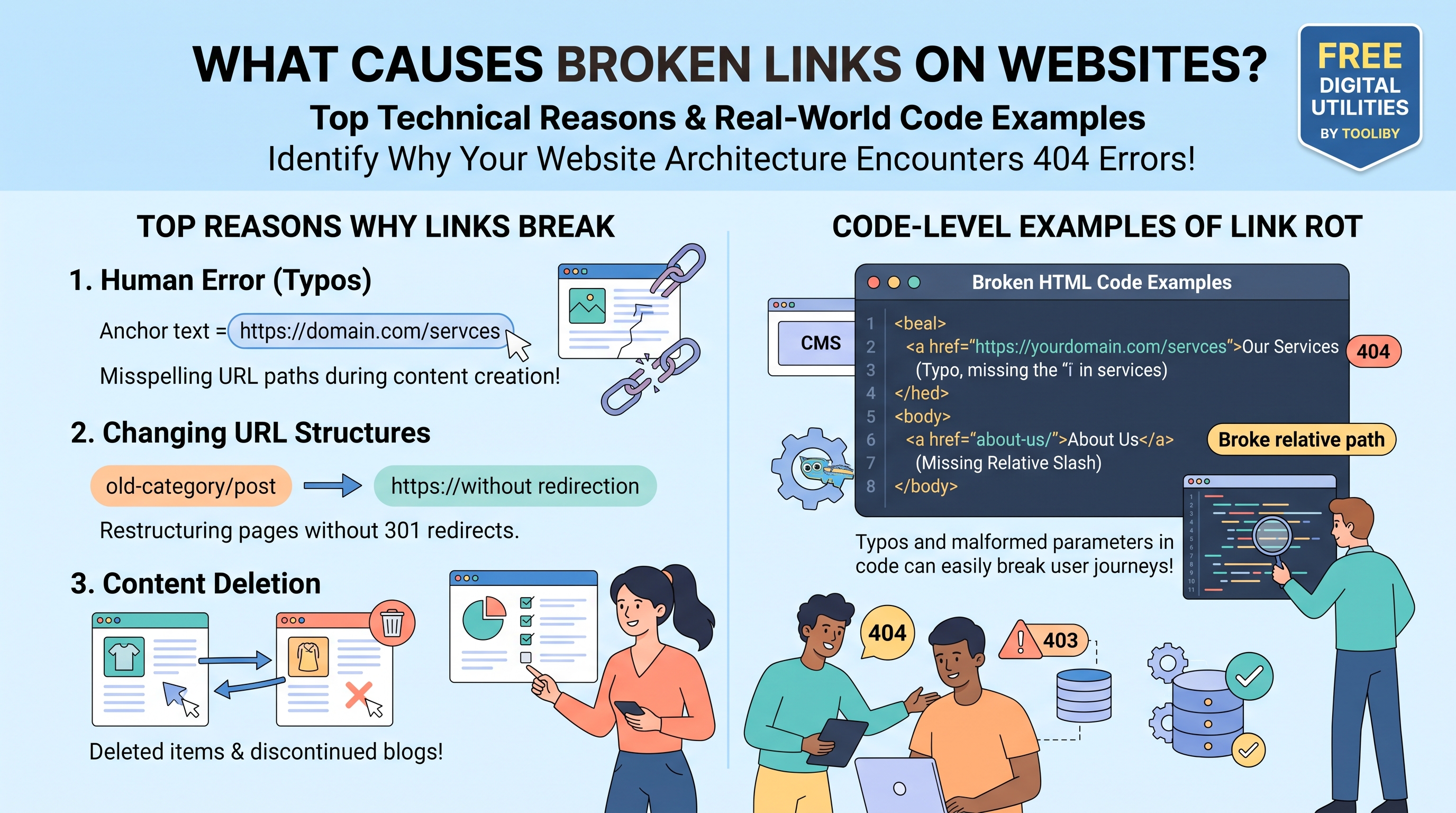
This is the most common visual indicator. The destination website loads, but instead of the article or product you expected, you see a page saying "Oops! This page cannot be found." This confirms the link is broken because the specific URL slug no longer exists in the site's database.
2. The 403 Forbidden Error
Sometimes, you click a link and receive a "403 Forbidden" or "Unauthorized Access" message. Technically, the URL exists, but the webmaster has restricted access to it (perhaps moving a public post to a private admin area). For everyday users, this acts exactly like a broken link.
3. Infinite Redirect Loops
Have you ever clicked a link and watched the URL bar flicker rapidly between two different web addresses before the browser gives up, displaying an "ERR_TOO_MANY_REDIRECTS" message? This happens when a webmaster sets up conflicting 301 redirects (e.g., Page A redirects to Page B, but Page B redirects back to Page A).
Method 1: How to Identify a Broken Link Manually (No Tools Required)
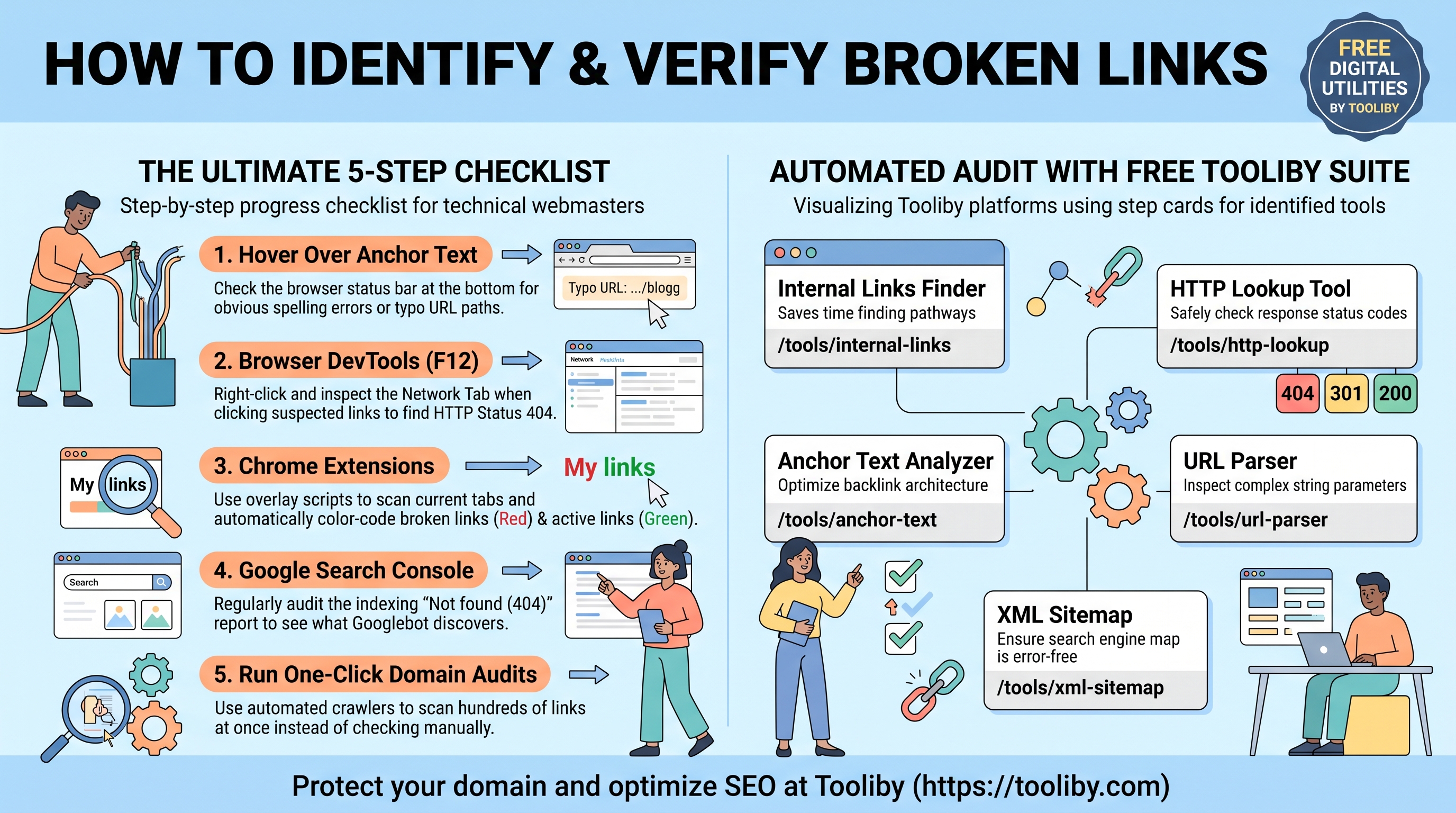
If you are only checking a single blog post or a small landing page, manual verification is often the fastest approach. Here is how to tell if a link is broken without installing any software:
The "Hover and Click" Technique
Hover Over the Anchor Text: Move your mouse cursor over the hyperlinked text. Do not click yet.
Check the Status Bar: Look at the bottom-left corner of your web browser. A small grey box will appear displaying the exact destination URL.
Inspect for Typos: Look closely at the URL structure. Does it look correct? Do you see obvious spelling mistakes like
domain.com/bloggor double slashes likedomain.com//contact? If you spot a typo here, the link is almost certainly broken.Click to Verify: Finally, open the link in a new tab (Ctrl+Click or Cmd+Click). If it loads a 404 page, you have successfully identified a broken link.
While this method is foolproof for one or two links, manually hovering and clicking on a 5,000-word article with 60 external citations will drain your time and patience.
Method 2: Using Browser Developer Tools (For Technical Audits)
For web developers and technical SEO professionals who want to know how to identify a broken link without leaving the page, the browser's built-in Developer Tools are a goldmine.
This method allows you to see the exact HTTP status code a link is returning behind the scenes.
Step-by-Step Guide for Google Chrome:
Open Developer Tools: Right-click anywhere on the webpage and select Inspect, or press
F12on your keyboard.Navigate to the Network Tab: At the top of the Developer Tools panel, click on the Network tab.
Click the Suspect Link: With the Network tab open, click the hyperlink on the page.
Analyze the Status Code: Watch the network panel populate with data. Look at the very first line of the request. Under the "Status" column, a healthy link will show
200. A broken link will clearly display404in red text.
This method is incredibly useful for diagnosing broken image links or broken script files that might not be immediately visible on the front end of the website.
Method 3: Spotting Errors with Chrome Extensions
If you regularly publish content, you need a faster way to audit pages before hitting the "Publish" button. This is where browser extensions shine. They allow you to audit all links on a single page with one click.
How Link Auditing Extensions Work
Extensions like "Check My Links" or "Broken Link Checker" run a quick script across your active browser tab.
They identify every HTML
<a>(anchor) tag on the page.They send a rapid background request to each URL.
They color-code the results directly on your screen.
Typically, healthy links are highlighted in green, while broken links (returning 404 errors) are highlighted in red. Warnings (like 403 Forbidden or 400 Bad Request) might be highlighted in yellow.
Pros: Excellent for quick visual audits of a single blog post before publishing.
Cons: They only scan the page you are currently viewing. You cannot use an extension to audit your entire website at once.
Method 4: Automated Auditing with Free Tooliby Utilities (The Best Way)
Manual clicking, developer tools, and extensions are great for single pages, but what if you have a massive website with hundreds of blog posts? How to tell if a link is broken across an entire domain?
You need an automated, server-side auditing tool. You can easily extract, analyze, and diagnose every link on your website using
Discover Internal URLs: Discover all internal hyperlinks and paths across your pages using the
Internal Links Finder Internal Link Count Diagnose HTTP Status Codes: Instantly check server responses and status codes (such as 200, 301, 404, or 500) using the
HTTP Lookup HTTP Status Codes Audit Anchor Text & Link Structure: Ensure anchor text distribution and internal link architecture remain optimized using the
Anchor Text Analyzer Deconstruct Complex URLs: Inspect parameters, query strings, and path errors manually using the
URL Parser Verify XML Sitemap Integrity: Prevent broken links from polluting your sitemap using the
XML Sitemap Generator
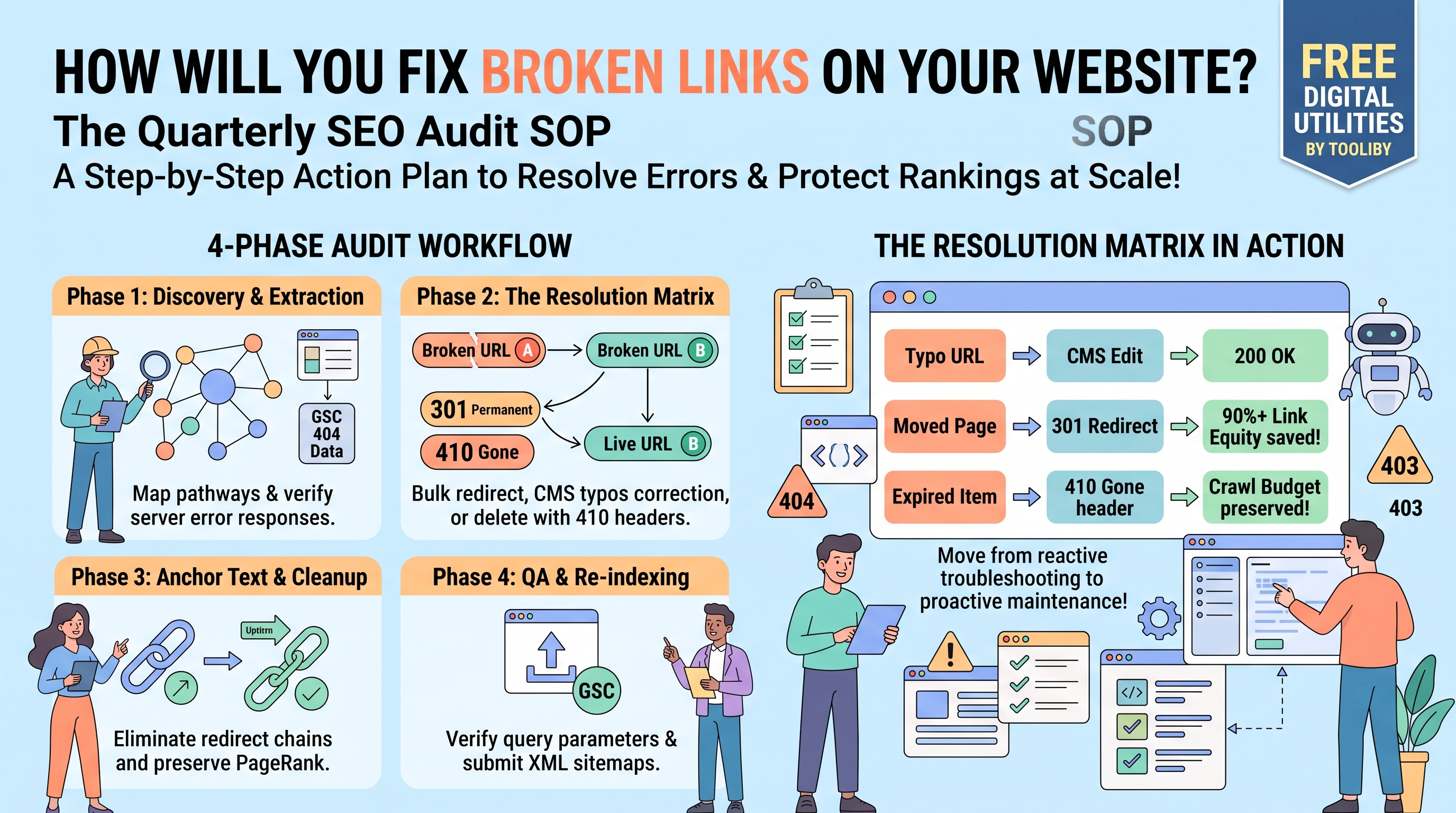
By utilizing these verified free tools from Tooliby, you transition from reactive link checking to proactive website maintenance, ensuring your SEO foundation remains rock solid.
Method 5: Finding Broken Links via Google Search Console
If you want to know how Google itself identifies broken links on your website, you must use Google Search Console (GSC). This is the ultimate source of truth because it reports exactly what Googlebot experiences when crawling your domain.
Step-by-Step GSC Audit:
Log into your Google Search Console dashboard.
On the left-hand menu, navigate to Indexing > Pages.
Scroll down to the "Why pages aren't indexed" section.
Look for the specific error titled: "Not found (404)".
Click on this error to view a comprehensive list of every broken internal URL Googlebot has discovered on your site.
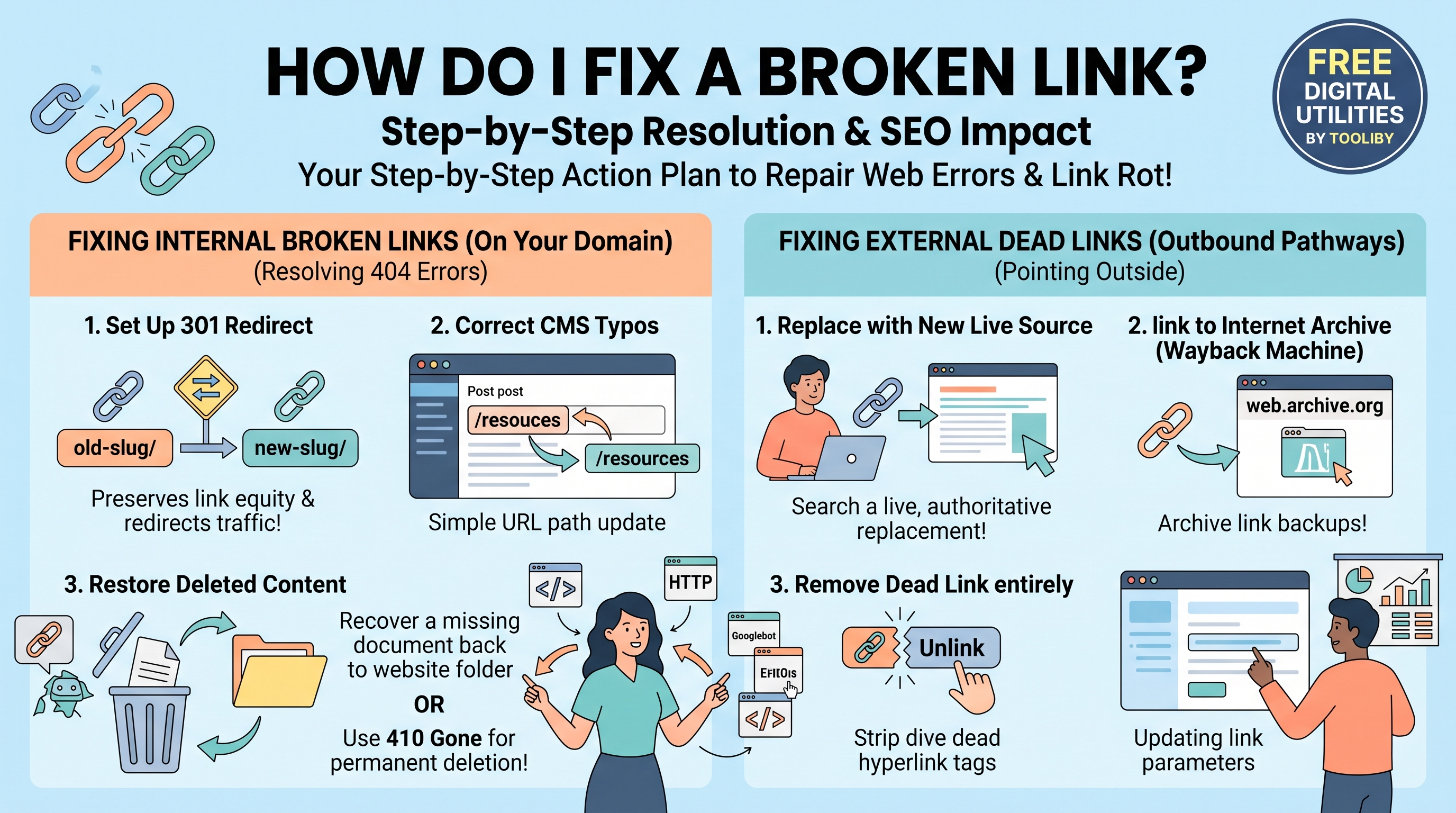
Why this is crucial: GSC not only tells you which links are broken, but it also allows you to see if external websites are linking to a deleted page on your site. Once you identify these 404 pages in GSC, you can easily set up 301 redirects to recover that lost link equity.
Frequently Asked Questions (FAQs)
1. How to tell if a link is broken without clicking it?
The best way to verify a link without clicking it is to hover over the anchor text to inspect the URL for obvious typos in the browser's status bar. Alternatively, you can copy the link address and paste it into Tooliby's
2. How to identify a broken link on a mobile device?
On mobile devices, you cannot easily hover to see URLs. Instead, long-press the hyperlink until a menu appears, select "Copy link address," and paste it into a mobile browser tab or Tooliby's
3. Are broken links bad for SEO?
Yes. While a few broken links won't incur a direct manual penalty, an excessive number of 404 errors will waste your Googlebot crawl budget, trap link equity in dead ends, and severely degrade your user experience (UX), which leads to lower overall search rankings.
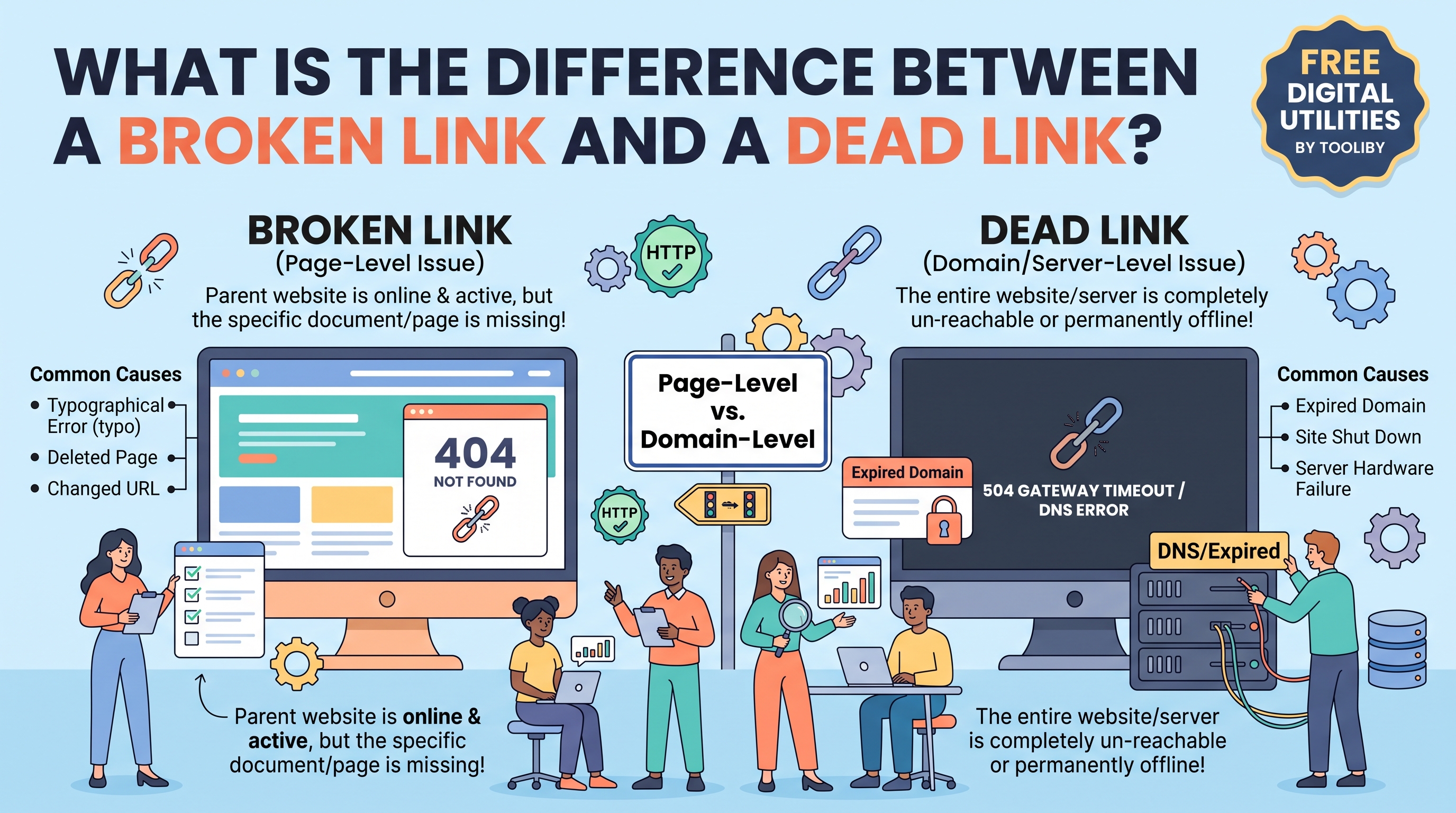
4. What is the difference between a broken link and a dead link?
A broken link (404 error) means the specific page is missing, but the host website is still online and active. A dead link (Server Timeout/DNS Error) means the entire destination website or server is completely offline or the domain has expired.
5. How often should I check my website for broken links?
For active blogs and business websites that publish content weekly, running a comprehensive link audit once a month is highly recommended to catch deleted external sources and mistyped internal URLs.
Don't let link rot destroy your hard-earned SEO rankings. Start auditing your site's architecture today by utilizing the powerful, one-click features of the 360+ Free Digital Tools at
What Is Tooliby Blog?
Tooliby Blog is a free publication covering developer tools, SEO, AI prompts and productivity — written by real practitioners who use these tools daily. No paywall, no account needed. Just practical content you can act on.
Can I share this article?
Yes — use the share buttons above to post on Twitter, LinkedIn, Facebook or WhatsApp. The more people read it, the better.
How do I write for Tooliby?
Click Write for Us and submit your article. We review within 48 hours and publish with full author credit and bio.