How Do I Fix a Broken Link? (Step-by-Step Resolution & SEO Impact)
Discovering broken or dead hyperlinks during a technical website audit can feel overwhelming, especially if your site has accumulated hundreds of published articles over time. Left unaddressed, link errors quietly bleed away your hard-earned SEO authority, confuse search engine crawlers, and frustrate visitors. This leads webmasters, SEO strategists, and digital publishers to ask critical, practical questions: How do I fix a broken link on my own website? How to fix a dead link when an external source goes offline permanently? And what is the exact step-by-step process to restore link equity and protect user experience (UX)?
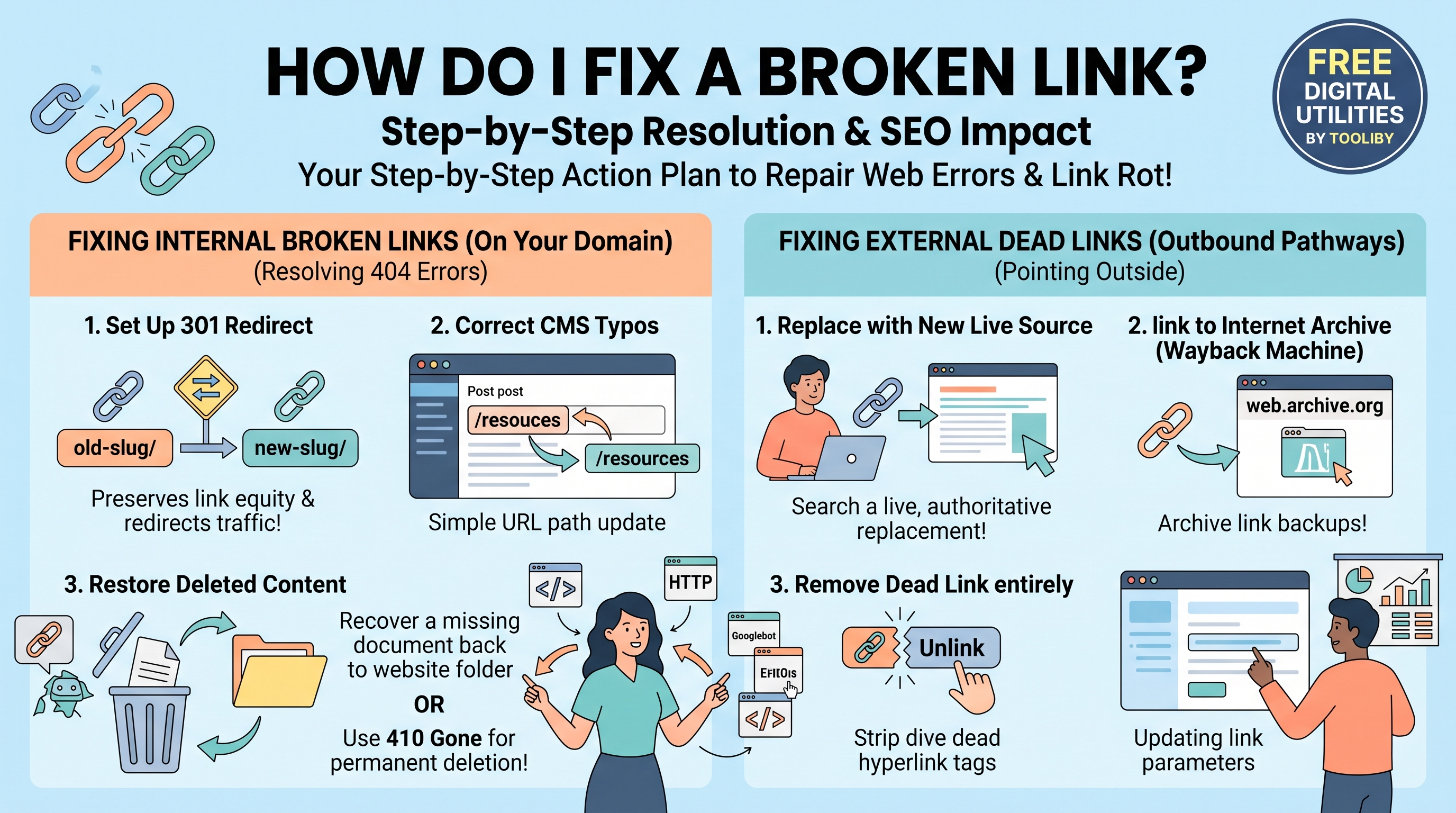
Fixing broken and dead links is one of the highest-ROI technical SEO tasks you can perform. The short answer is: To fix a broken internal link, either set up a 301 permanent redirect to a relevant live page, update the mistyped URL slug, or restore the deleted content. To fix a dead external link, remove the hyperlink tag, replace it with a new authoritative source, or update the URL using the Wayback Machine.
In this actionable, step-by-step tutorial, we will walk you through the complete resolution workflow for both internal broken links and external dead links. We will cover 301 redirects, 410 status codes, anchor text optimization, SEO penalty risks, and show you how to streamline the entire fix using free utilities from Tooliby.
[Insert Banner Image Here]
Table of Contents
The Short Answer: Quick Action Plan for Link Repair
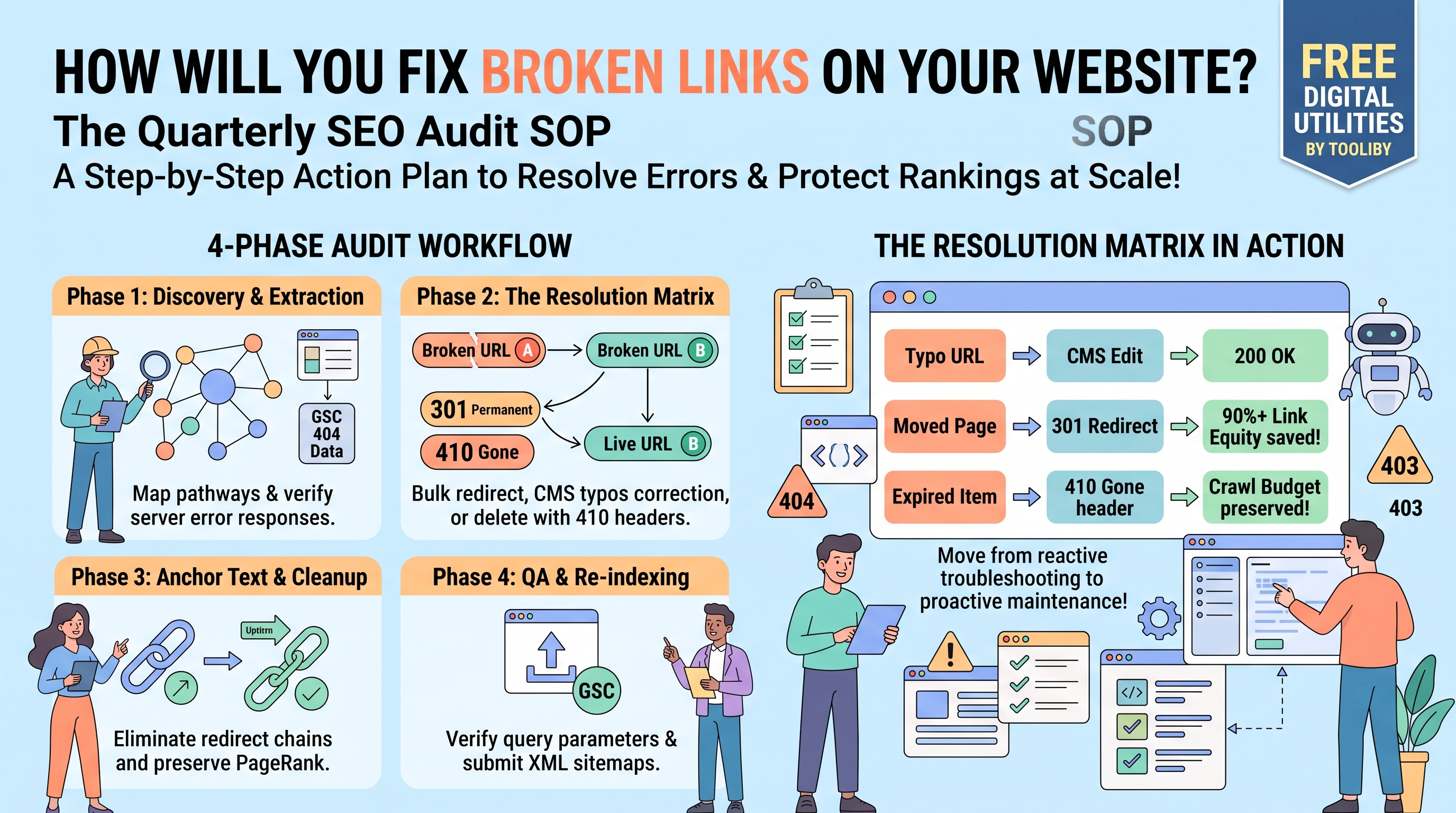
Before diving into the detailed step-by-step technical execution, here is the immediate decision matrix for resolving broken and dead links:
If it's a broken internal link (404 error on your domain):
If the page was moved to a new address: Set up a 301 Redirect.
If the URL has a typo: Update the hyperlink slug in your CMS.
If the page was deleted intentionally and has no replacement: Remove the internal link or serve a 410 Gone header.
If it's a dead external link (expired domain or offline server):
If a replacement resource exists: Update the link to point to the new live URL.
If no relevant replacement exists: Unlink the anchor text completely.
If the historical source is critical: Link to the archived copy via Web Archive (Wayback Machine).
Executing these fixes prevents search engine crawlers from hitting dead ends and ensures that link equity (PageRank) continues to flow smoothly across your web architecture.
Why Unfixed Links Harms Your SEO and Bounce Rate
Ignoring link rot on your website carries severe long-term consequences for your organic visibility and user engagement. Understanding why you must repair these links helps prioritize your site maintenance workflow.
1. Trapping Link Equity (PageRank Bleed)
Internal and external backlinks act as pipes that transfer authority (PageRank) throughout your site. When a hyperlink leads to a broken 404 page or a dead server, that authority flows into a virtual dead end. By resolving broken links, you "re-pipe" your website, allowing link equity to pass to your valuable money pages and pillar content.
2. Crawl Budget Degradation
Search engine bots like Googlebot operate on a finite crawl budget per domain. When crawlers encounter broken links, they waste valuable server requests processing error codes rather than discovering and indexing your newly published content. Fixing broken links ensures Googlebot spends 100% of its budget on healthy, indexable pages.
3. Skyrocketing Bounce Rates & Pogo-Sticking
When a user clicks an internal or outbound link looking for further reading, arriving at a generic "404 Not Found" or a browser timeout page causes immediate frustration. Most users will immediately hit the "Back" button and return to the search results (a behavior known as pogo-sticking). High pogo-sticking signals to search algorithms that your page failed to satisfy user intent, gradually depressing your organic rankings.
[Insert Infographic Here]
How Do I Fix a Broken Internal Link? (4 Proven Solutions)
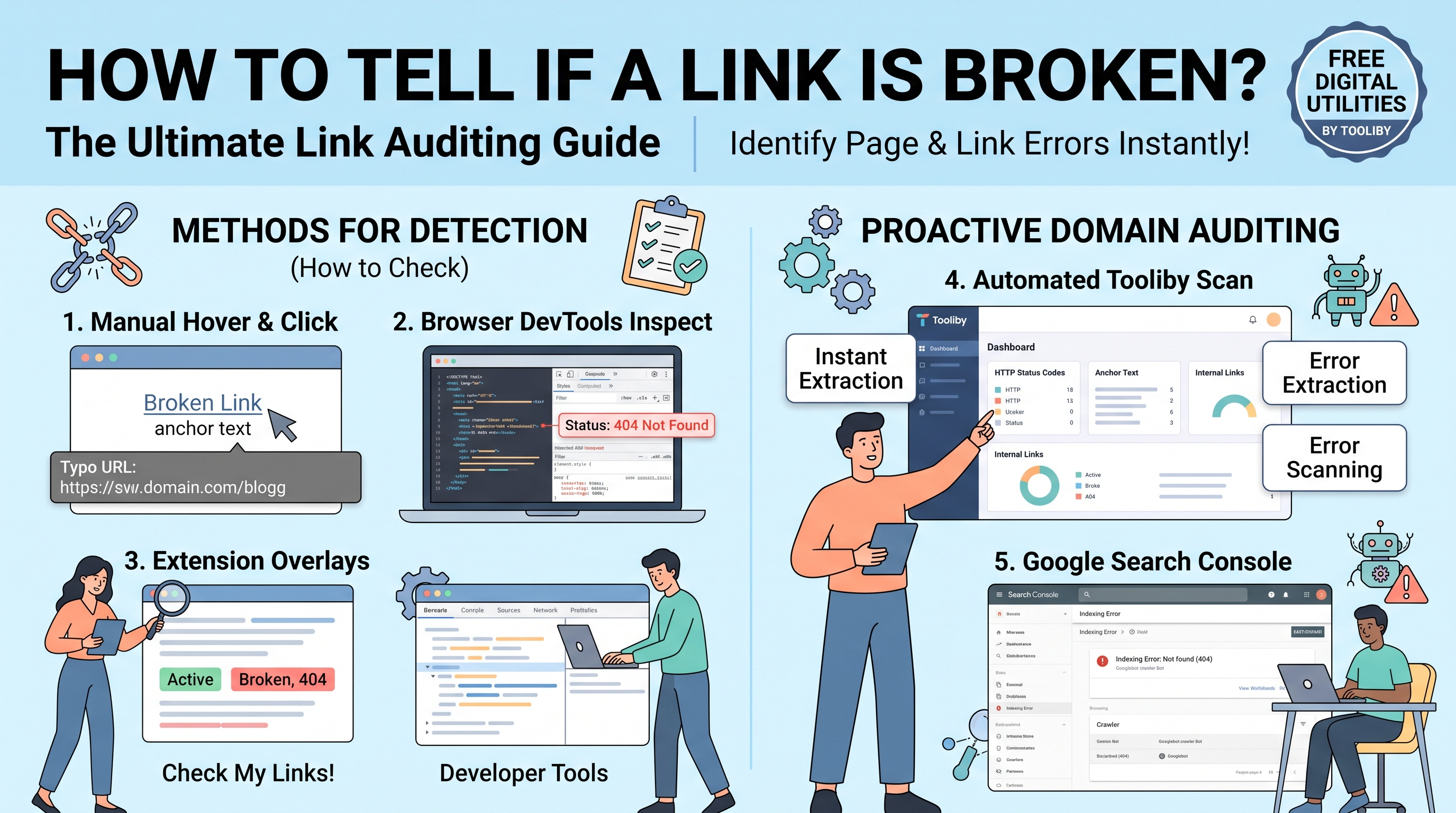
When auditing your site using Google Search Console or SEO crawlers, internal broken links (pages on your own domain returning 404 errors) should be resolved first. Here are the four primary methods to fix them:
Solution 1: Implement a 301 Permanent Redirect
A 301 redirect tells search engines and browsers that a page has permanently moved to a new address. This is the gold standard for fixing broken URLs when content has been relocated during a site migration or URL restructure.
When to use: When you changed the URL slug of an article (e.g., from
/old-post-titleto/new-post-title) or combined multiple thin posts into one comprehensive guide.How to implement: Use a redirect plugin (such as Rank Math, Redirection, or Yoast SEO in WordPress) or add a directive directly to your server's
.htaccessfile:Redirect 301 /old-post-title https://yourdomain.com/new-post-title
Solution 2: Correct the Typo in the CMS
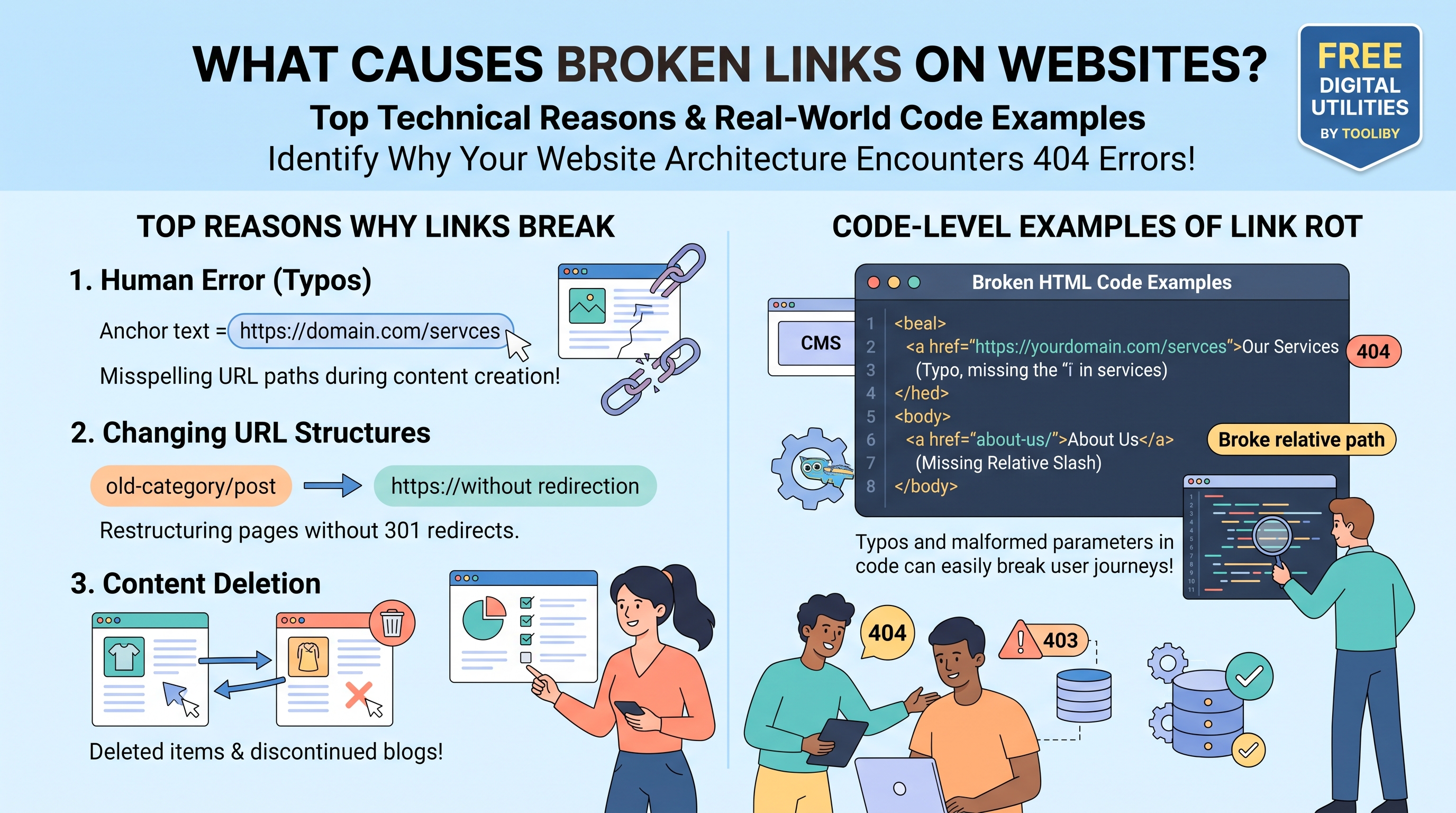
Often, a link breaks simply because of a typographical error when creating the hyperlink inside your content editor (e.g., typing domain.com/resouces instead of domain.com/resources).
When to use: When the destination page is live and healthy, but the linking article contains a misspelled URL path.
How to implement: Open the linking blog post in your CMS editor, edit the hyperlink, correct the typo, and hit update.
Solution 3: Restore the Missing Page
If a high-performing page or product was accidentally moved to the trash or deleted by an editor without setting up a redirect, the simplest solution is to restore it.
When to use: When the deleted page had valuable incoming backlinks or search traffic.
How to implement: Restore the page from your CMS trash bin or restore the specific URL path from a recent website backup.
Solution 4: Remove the Internal Hyperlink
If a page was deleted intentionally (e.g., an outdated promo campaign) and there is no relevant replacement page to redirect to, you should remove the internal hyperlinks pointing to it.
When to use: When no equivalent content exists on your site to avoid creating confusing redirects.
How to implement: Locate the pages containing the broken link, highlight the text, and click "Unlink" in your editor.
How to Fix a Dead External Link? (3 Practical Approaches)
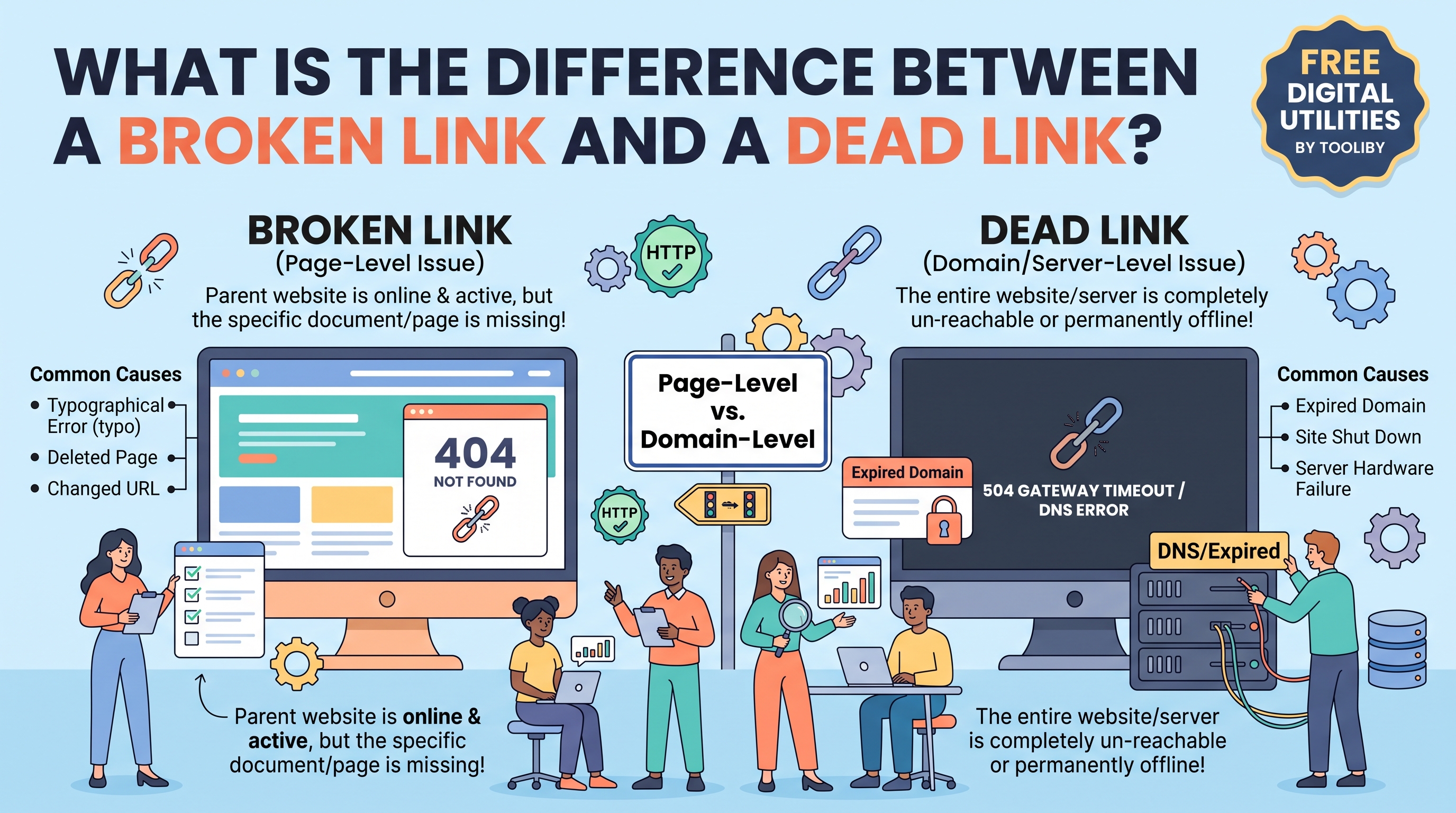
Fixing a dead external link (an outbound hyperlink pointing to a third-party website that has shut down, expired, or changed domains) requires a different approach because you do not control the destination server.
Here is how to fix a dead link pointing outside your domain:
Approach 1: Replace with a Live, High-Authority Source
The most effective way to maintain content value is to find an alternative live resource that supports your statement or citation.
Copy the anchor text of the dead link.
Search Google for a fresh, authoritative study, article, or documentation covering the same topic.
Update the hyperlink with the new third-party URL.
Approach 2: Use the Wayback Machine (Internet Archive)
If the dead link cited a unique statistic, historical report, or original piece of research that no longer exists anywhere else on the web, you can point your readers to an archived snapshot.
Go to
archive.org(The Wayback Machine).Paste the dead URL into the search bar to find a saved historical snapshot.
Replace the dead link with the Wayback Machine URL (e.g.,
web.archive.org/web/...).
Approach 3: Unlink the Anchor Text Completely
If the dead link was merely a supplementary mention and no alternative source exists, simply convert the hyperlinked text back into plain text. This cleans up your outbound link profile instantly.
301 Redirects vs. 410 Gone: When to Use Which?
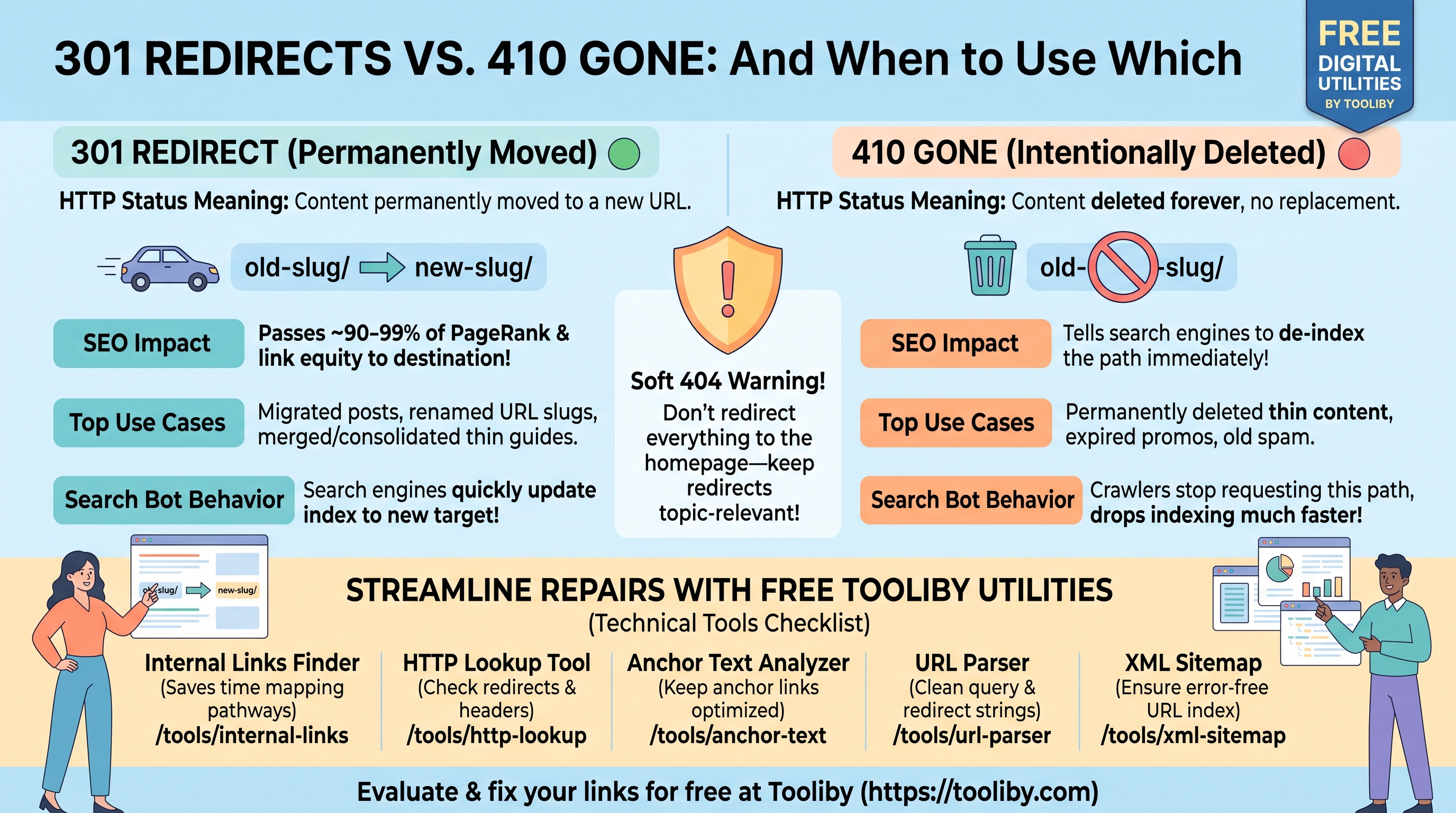
When resolving broken internal URLs, webmasters frequently debate whether to use a 301 Moved Permanently redirect or a 410 Gone status code.
| Factor | 301 Redirect | 410 Gone |
| HTTP Status Meaning | Content permanently moved to a new URL. | Content intentionally deleted with no replacement. |
| Impact on Link Equity | Passes ~90-99% of PageRank to destination page. | Terminating link equity; signals search bots to de-index quickly. |
| Best Use Case | Migrated posts, renamed slugs, merged content. | Permanently removed thin content, spam pages, expired promos. |
| Search Engine Behavior | Search bots update index to new URL. | Search bots remove URL from index much faster than 404s. |
Pro Tip: Do not redirect all broken 404 pages to your homepage! This creates a "Soft 404" error in Google Search Console because the homepage does not satisfy the user's specific query. Only redirect broken links to relevant, topic-matched replacement pages.
Streamline Your Technical Repairs with Free Tooliby Utilities
Fixing broken and dead links across your site architecture requires precision and clean execution. You can verify, plan, and execute your link repairs completely for free using
Audit Internal Link Architecture: Identify all internal hyperlinks across your site to prepare redirect maps using the
Internal Links Finder Internal Link Count Verify Server Response Codes: Confirm that your 301 redirects or 410 headers are firing correctly using
HTTP Lookup HTTP Status Codes Optimize Anchor Text Flow: Clean up and re-align anchor text across your site to match new redirect targets using the
Anchor Text Analyzer Deconstruct Redirection Paths: Check redirect parameters and clean URL structures using the
URL Parser Update Engine Maps: Ensure your updated, error-free URL paths are submitted to Google by regenerating your map with the
XML Sitemap Generator
Relying on verified Tooliby utilities guarantees that your link repairs are technically flawless and fully aligned with search engine expectations.
Frequently Asked Questions (FAQs)
1. How do I fix a broken link on my website using 301 redirects?
To fix a broken link with a 301 redirect, install an SEO redirect plugin or edit your server's .htaccess file. Point the broken 404 URL path to the live, relevant replacement page. This automatically routes users and search bots while preserving link equity.
2. How to fix a dead link pointing to an external website?
Because you don't own the external site, you must edit your post manually. Either replace the dead link with an active third-party source covering the same topic, replace it with an archived Web Archive link, or remove the hyperlink entirely.
3. Is it better to redirect or delete a broken link?
If equivalent or updated content exists on your site, it is always better to redirect using a 301 status code to preserve PageRank. If the content was permanently removed and has no relevant match, it is better to delete the link or serve a 410 Gone header.
4. What is a Soft 404 error and how do I fix it?
A Soft 404 occurs when a page returns a "200 OK" status code but displays a page stating content is missing, or when a broken URL is redirected to an irrelevant page (like the homepage). Fix it by redirecting the URL to a strictly relevant topic page or returning a true 404/410 status code.
5. How long does Google take to recognize a fixed broken link?
Once you set up a redirect or update a URL, Googlebot will recognize the fix the next time it crawls that specific page—usually within a few days to a couple of weeks depending on your site's crawl frequency. You can speed up this process by re-submitting your updated sitemap in Google Search Console.
Protect your domain authority, eliminate user frustration, and repair your website's architecture effortlessly using the 360+ Free Digital Tools at
What Is Tooliby Blog?
Tooliby Blog is a free publication covering developer tools, SEO, AI prompts and productivity — written by real practitioners who use these tools daily. No paywall, no account needed. Just practical content you can act on.
Can I share this article?
Yes — use the share buttons above to post on Twitter, LinkedIn, Facebook or WhatsApp. The more people read it, the better.
How do I write for Tooliby?
Click Write for Us and submit your article. We review within 48 hours and publish with full author credit and bio.