How to Compress a PDF File on Mac (Easiest Free Method + 4 Alternatives)
Got a PDF that's too big to email, too slow to upload, or eating up space on your Mac? If you need to compress a PDF file on Mac fast, you're not alone — it's one of the most common file headaches out there. Whether it's a scanned contract, a design portfolio, or a 40-page report full of screenshots, PDFs balloon in size fast, and most of that bulk comes from the images packed inside them.
The fastest fix is a free online tool that does the compression for you in a few seconds, no installs or settings involved. If you'd rather stick to what's already on your Mac, that works too, and we've covered those methods below as well.
Here's the quickest way to compress a PDF file on Mac, plus four built-in alternatives if you'd rather not leave your browser or you're dealing with a batch of files.
The Easiest Way: Tooliby's Free PDF Compressor
If you just want a smaller PDF without digging into menus or installing anything, this is the fastest route — and it works the exact same way whether you're on a Mac, a Windows laptop, or even your phone.
Try Tooliby's Free PDF Compressor Drag your file into Tooliby's PDF Compressor and get a smaller PDF in seconds — no signup, no software, files up to 20MB.
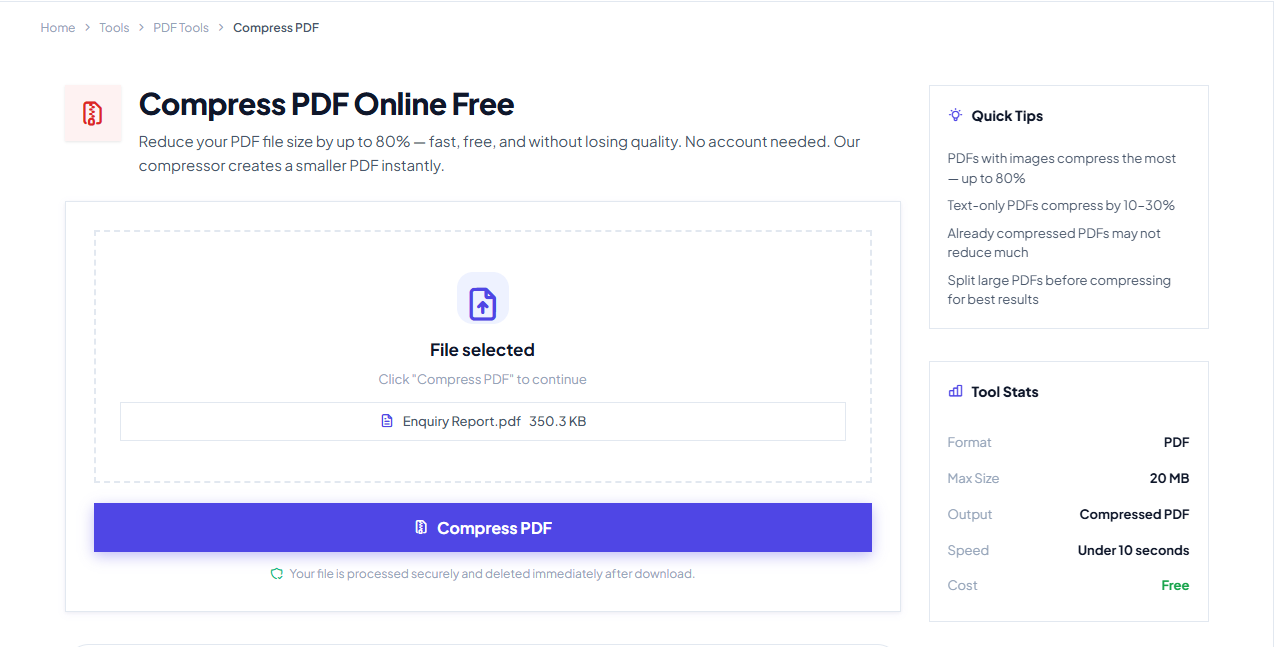
How it works:
- Go to tooliby.com/tools/compress-pdf and drop your PDF into the upload box (or click to browse).
- Click Compress PDF. The tool applies the highest compression level automatically — no settings to figure out.
- Click Download to save the smaller file.
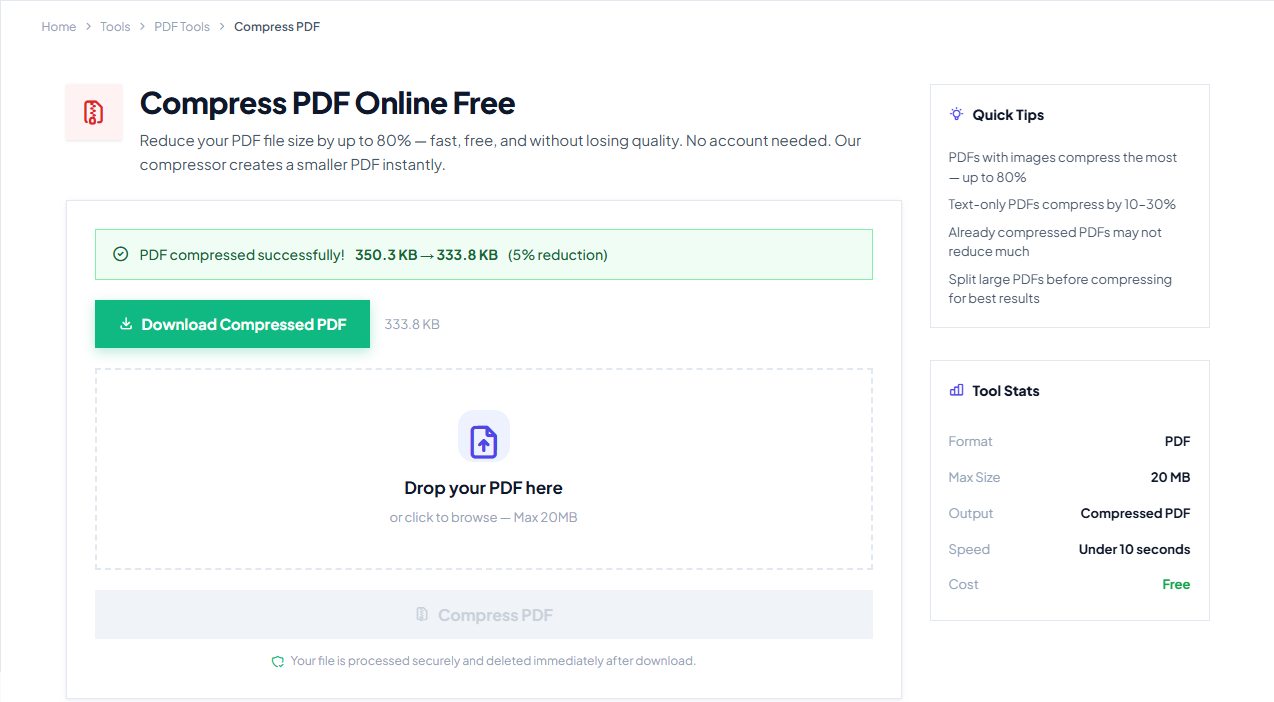
That's the whole process.
Why It Beats Preview or Terminal
A few things that make it worth using over fiddling with built-in Mac tools:
- No learning curve. There's no Quartz Filter menu to find or command to memorize — you upload, click once, and download.
- Works on any device. Same steps on Mac, Windows, iPhone, or Android, since it all runs in your browser.
- Real compression, not guesswork. It reduces file size by 30–80% depending on the content, using PDF 1.5 optimization and maximum compression, and strips out redundant data and metadata that Preview's filter leaves behind.
- Your file doesn't stick around. It's processed on the server and permanently deleted from memory right after you download the result — nothing is stored on disk or shared, which matters if the PDF has anything sensitive in it, like a contract or an ID scan.
- No file size games. If your PDF is already well-compressed, the tool won't return a bloated "compressed" file just to show a result — it hands you back the original instead.
This covers the vast majority of what people need: a quick, one-time compression without touching system settings. If you want to compress dozens of files at once, or you specifically don't want to upload anything anywhere, the methods below are worth knowing too.
Other Ways to Compress a PDF on Mac (Built-In Tools)
These use apps that already come with macOS. They take a bit more clicking than the method above, but they're worth knowing if you're offline, compressing in bulk, or just prefer not to upload files.
Preview's Reduce File Size Filter
- Open the PDF in Preview (double-clicking usually opens it there by default).
- Click File > Export… — not "Export as PDF," just "Export."
- Open the Quartz Filter dropdown and select Reduce File Size.
- Rename the file if you want to keep the original, then hit Save.
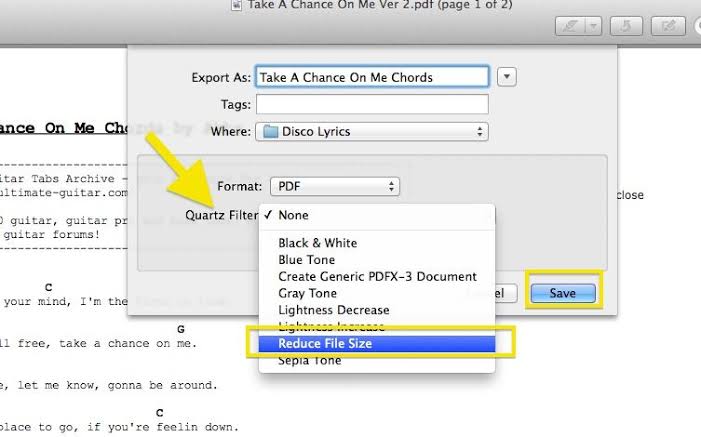
This can shrink a file by 50% or more, but the filter is aggressive — it down samples every image to roughly 75 DPI regardless of the original quality. Fine for text-only PDFs, noticeably blurry on scanned documents or photo-heavy files.
Pro tip: If that's too harsh, open ColorSync Utility (Applications > Utilities), go to the Filters tab, duplicate "Reduce File Size," and adjust the compression settings to something less extreme. Your custom filter then shows up right next to the default one in Preview's Export dropdown.
Batch Compress with an Automator Quick Action
Useful if you've got a folder full of scanned files and don't want to export them one by one.
- Open Automator > New Document > Quick Action.
- Set it to receive PDF files in Finder.
- Search for "quartz" and drag in Apply Quartz Filter to PDF Documents.
- Pick a filter (the default "Reduce File Size" or your custom one) and save the Quick Action.
Now you can right-click any PDF (or a batch of them) in Finder, go to Quick Actions, and compress them all in one click. Keep in mind PDF compression mostly targets images — a text-only PDF won't shrink much this way, since there's little to compress.
Terminal + Ghostscript (For Precise Control)
If you want an actual quality setting instead of "small" or "large," Ghostscript gives you that. Install it with Homebrew:
brew install ghostscriptThen run:
gs -sDEVICE=pdfwrite -dCompatibilityLevel=1.4 -dPDFSETTINGS=/ebook -dNOPAUSE -dQUIET -dBATCH -sOutputFile=compressed.pdf original.pdfSwap /eBook for /screen (smallest, lowest quality), /printer (300 DPI, better for print), or /prepress (highest quality, minimal compression). This takes more setup than the other methods, but it gives you predictable, repeatable results if you're compressing PDFs often.
Finder's Compress (Not the Same Thing)
Worth mentioning because people mix this up: right-clicking a PDF in Finder and choosing Compress wraps it into a .zip file — it doesn't shrink the PDF itself. Use this when you want to bundle files together for sharing, not when your goal is a smaller PDF.
Which Method Should You Actually Use?
| Method | Best For | Setup Needed | Works Offline |
|---|---|---|---|
| Tooliby PDF Compressor | Quick compression, any device, no hassle | None | No |
| Preview (Reduce File Size) | One-off compression on your Mac | None | Yes |
| Automator Quick Action | Compressing many files at once | One-time setup | Yes |
| Terminal + Ghostscript | Precise, repeatable compression | Install Homebrew + Ghostscript | Yes |
| Finder Compress (Zip) | Bundling files for sharing | None | Yes |
Common Mistakes That Ruin PDF Quality
- Running Reduce File Size on a scanned document. Scanned pages are already images, so aggressive compression makes text blurry fast. A tool with smarter compression, like Tooliby's, or the
/printerGhostscript setting handles this better. - Compressing an already-compressed PDF repeatedly. Each pass loses a bit more quality. Always compress from the original file.
- Not checking the output before sending it. A big size reduction sounds great until the images look washed out. Always preview the result first.
- Using Finder's Compress and expecting a smaller PDF. That just zips the file — it doesn't touch what's inside the PDF itself.
FAQs
What does compressing a PDF do? It reduces the file size, mainly by lowering the resolution of embedded images and stripping out redundant data like unused fonts, duplicate objects, and metadata. The page count and text stay exactly the same — only the storage size shrinks.
How do I compress a PDF to 100KB or a specific size on Mac?
Preview's Reduce File Size filter applies one fixed setting, so it won't reliably hit an exact target like 100KB. For a specific size limit — common with job application portals or email attachment caps — an online compressor like Tooliby gets you closer, or use Ghostscript's /screen setting for the most aggressive reduction.
What's the easiest way to compress a PDF on Mac? An online tool like Tooliby PDF Compressor is the fastest — upload, click compress, download. No app to open, no settings to configure.
Does compressing a PDF on Mac reduce quality?
It depends on the method. Preview's Reduce File Size filter is the most aggressive and noticeably lowers image quality. Tools that use smarter compression, or Ghostscript with /printer or /prepress settings, keep quality much closer to the original.
Can I compress a PDF on Mac without losing quality at all? If the PDF is mostly text, yes — text compresses with no visible quality loss. If it's full of images or scans, some quality loss is unavoidable once you're reducing size; the goal is picking a method where the loss isn't noticeable.
Why won't my PDF get any smaller no matter what I try? If it's already text-based with no embedded images, there's simply not much left to compress. Large text-only PDFs are usually large because of page count, not file bloat.
Is it safe to upload a PDF to an online compressor? With Tooliby, yes — files are processed on the server and permanently deleted from memory right after you download the result, never stored on disk or shared.
Do I need internet access to compress a PDF on Mac? Only for the online tool method. Preview, Automator, and Ghostscript all work offline.
Wrapping Up
If you just want a smaller PDF without thinking about it, Tooliby PDF Compressor gets you there in under a minute — no app, no settings, works on whatever device you're on. If you're dealing with scanned files regularly or want more control over quality, the built-in Mac methods above are worth setting up once.
Either way, your next PDF won't be the one that bounces back from an email server for being too large.
What Is Tooliby Blog?
Tooliby Blog is a free publication covering developer tools, SEO, AI prompts and productivity — written by real practitioners who use these tools daily. No paywall, no account needed. Just practical content you can act on.
Can I share this article?
Yes — use the share buttons above to post on Twitter, LinkedIn, Facebook or WhatsApp. The more people read it, the better.
How do I write for Tooliby?
Click Write for Us and submit your article. We review within 48 hours and publish with full author credit and bio.